Rollo

Tag: UPS shipping labels

  • Print UPS® Labels for Shipping without a Drop of Ink

    Print UPS® Labels for Shipping without a Drop of Ink

    Running an online business is a challenge. From managing inventory, printing UPS labels for shipping, and delighting customers, every minute counts when you’re wearing multiple hats, especially when you have to ensure packages are delivered within a few business days.

    And let’s be honest, dealing with shipping can feel like a massive time suck – until you discover Rollo. This game-changing solution is on a mission to make label printing so effortless, you’ll actually enjoy prepping those packages for delivery.

    With Rollo’s wireless label printer and Rollo Ship, its all-in-one shipping solutions app, you can create UPS labels for shipping and integrate UPS services seamlessly into your workflow. But that’s just the beginning. Rollo hooks you up with outrageously good UPS®discounts that’ll have you doing a happy dance every time you create a shipment, and slap one of those labels on a box.

    Why UPS® Labels for Shipping are Essential
    Let’s talk about what UPS labels for shipping are and why they’re essential for your logistics process. These labels are basically your package’s passport. Without them, your precious cargo isn’t going anywhere. UPS labels carry all the vital info needed to get your product from point A to point B safely and efficiently. Think of them as the GPS for your packages in the vast world of shipping.

    These labels contain crucial information like:

    • 📮 Sender and recipient addresses
    • 📦 Package weight and dimensions
    • 🚚 Shipping service selected
    • 🔍 Tracking number

    Without accurate UPS labels, your packages could get lost, delayed, or even returned. That’s why having a reliable system for creating and printing these labels is crucial for any online seller or small business.

    Integrating Rollo’s Label Printer with UPS®

    Remember the days of untangling cords, loading rolls of labels, and dealing with printer jams? Rollo makes that nightmare a distant memory. Their innovative wireless label printer is set up in a snap – just unbox, plug in the power cord, and connect to your device via Bluetooth. No complicated software installations.

    From there, it’s smooth sailing with UPS®. Rollo’s printer and app play beautifully with all major UPS® services – UPS® Ground, Air, Freight, you name it. Print shipping labels for any UPS® offering right from your desktop or mobile device. Want to incorporate your workflow with other shipping carriers down the line? No problem, Rollo’s got your back there too.

    Traditional vs. Inkless Printing Methods

    Before we dive deeper into Rollo’s solution, let’s compare traditional and inkless printing methods:

    • 🖨️ Traditional printing: Uses ink cartridges, prone to smudging, and can be costly over time.
    • ♨️ Thermal printing: Uses heat to create images, no ink needed, and produces crisp, long-lasting labels.

    It’s like comparing a gas-guzzling clunker to a sleek electric car. Sure, they both get you from A to B, but one does it with style, efficiency, and a lot less hassle.

    How Inkless Printing Works

    Thermal printing is like drawing on those heat-sensitive mood rings we all had as kids. The printer uses a thermal printhead to heat specific areas of special heat-sensitive paper. When heated, these areas turn black, creating the text and images on your label. No ink, no toner, just pure heat-activated awesomeness.

    Benefits of Printing UPS Labels without Ink

    Switching to thermal printing for your UPS labels isn’t just a cool party trick. It’s a smart business move that can seriously boost your bottom line. Here’s why:

    • 💸 Save that cash: No more shelling out for expensive ink cartridges. Your future self will thank you when you see those savings add up.
    • 🌱 Green is the new black: Less waste means you’re doing your part for the environment. High five, eco-warrior!
    • 🛡️ Built to last: Thermal-printed labels are water-resistant and fade-proof. They’re like the Navy SEALs of the label world – tough and reliable.
    • ⚡ Speed demon: Thermal printers work faster than traditional ones. When you’re in the shipping zone, every second counts.
    • 🔍 Crystal clear: Say goodbye to smudged barcodes and unreadable addresses. Thermal prints are always crisp and clear.

    Step-by-Step Guide to Printing UPS Labels for Shipping

    Let’s dive into how this whole seamless shipping process works:

    1. Download the App: Get the Rollo app from your smartphone’s app store.
    2. Set Up the Printer: Connect your printer to power, turn it on, and load the labels.
    3. Connect to Wi-Fi: In the app, select your printer and connect to your Wi-Fi.
    4. Test Print: Do a test print to ensure everything is set up correctly.
    5. Manage Orders: View and compare shipping options from the app.
    6. Print Labels: Choose your shipping option and print the label.
    7. Schedule Pickup: Arrange for a pickup directly through the app.
    8. Save on Shipping: Enjoy up to 90% off on shipping rates as a Rollo customer.

    Customize Your Shipping Experience: Now that you’ve mastered the setup and basic operations, it’s time to tailor the Rollo experience to fit your brand’s unique needs.

    Customizing Your UPS Shipping Labels

    Of course, Rollo wouldn’t be Rollo without options to make your shipping process yours. Adding your company logo to UPS® labels? Check. Customizing package handling instructions like “Fragile” or “Keep Upright”? You got it. Switching up the label layout to suit your preferences? No problemo.

    Rollo offers a free label design app that makes designing a label as easy as a few clicks. Once you sign up, you have access to an array of templates and tools. Choose a template or start with a blank canvas, select your preferred size, layout, and color, and begin your design.

    Simply put, Rollo treats you like the boss you are, putting full control of your shipping communication right at your fingertips.

    Handling Common Issues with UPS Shipping Labels

    As any seasoned shipper knows, the journey doesn’t end once a label is printed. What if you need to reprint a lost label or make a last-minute change? Rollo keeps you covered without breaking a sweat.

    Additionally, if you used the UPS® account by Rollo, our customer service options can assist you with the UPS claim process. Just create a support ticket and provide the necessary information for a speedy response.

    Reprinting a label is as easy as a couple clicks in the app. Did your shipment details change after purchasing the original label? Just void it and print a new one – no hassles, no extra fees from UPS. You can even schedule pickups or drop-offs at your convenience through the app. Easy peasy.

    Advanced Features and Benefits of Rollo Ship

    Speaking of convenience, let’s talk about those sweet shipping management tools built right into the Rollo Ship app. With advanced tracking, you can monitor every shipment like a hawk, getting up-to-the-minute status updates delivered straight to your device.

    Expecting a package? Just check the app for delivery alerts. You can even send customized notifications to customers, extending that first-class service you’re known for.

    But what really separates Rollo from the competition is no skimpy fine print. No minimum shipping requirements, no hidden fees, just pure reliability and customer-centric focus. Sounds like the dream, doesn’t it?

    Big Shipping Discounts with Rollo
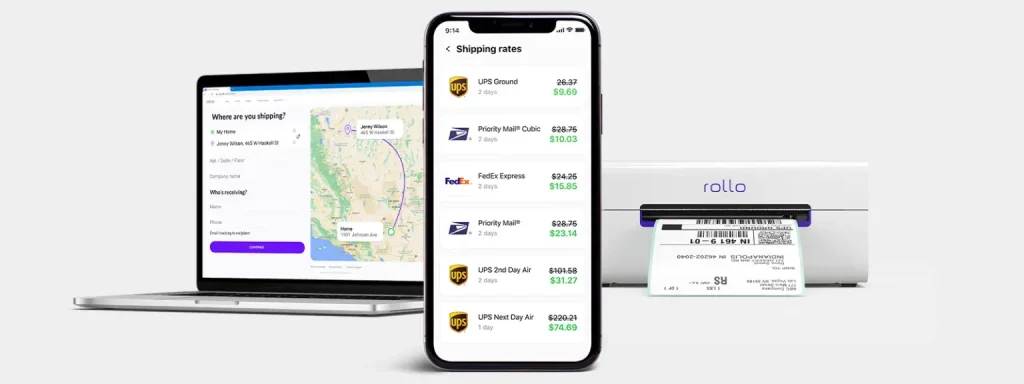
    Okay, let’s talk savings because that’s where Rollo truly shines. Most small businesses assume deep UPS discounts are reserved for corporate giants. Not anymore! Rollo opens the gates, scoring you the kinds of rates that’ll make your accountant weep happy tears.

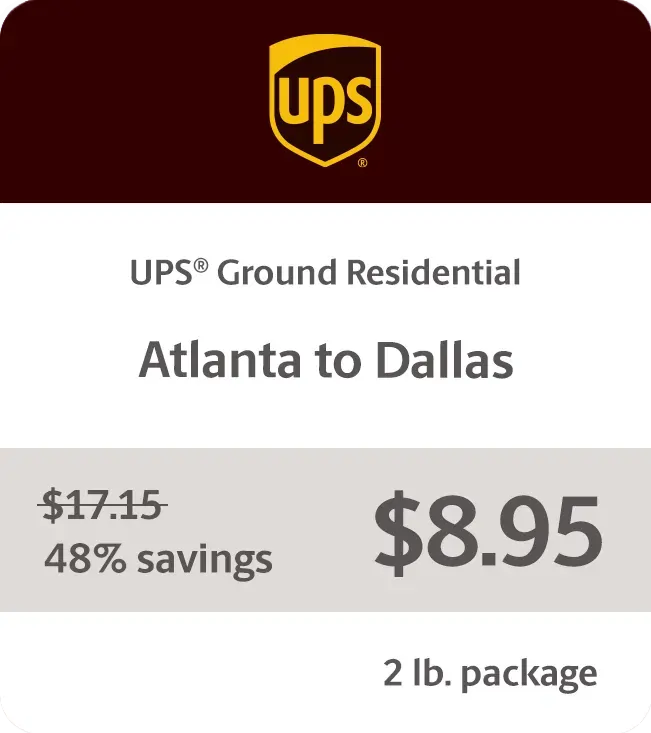
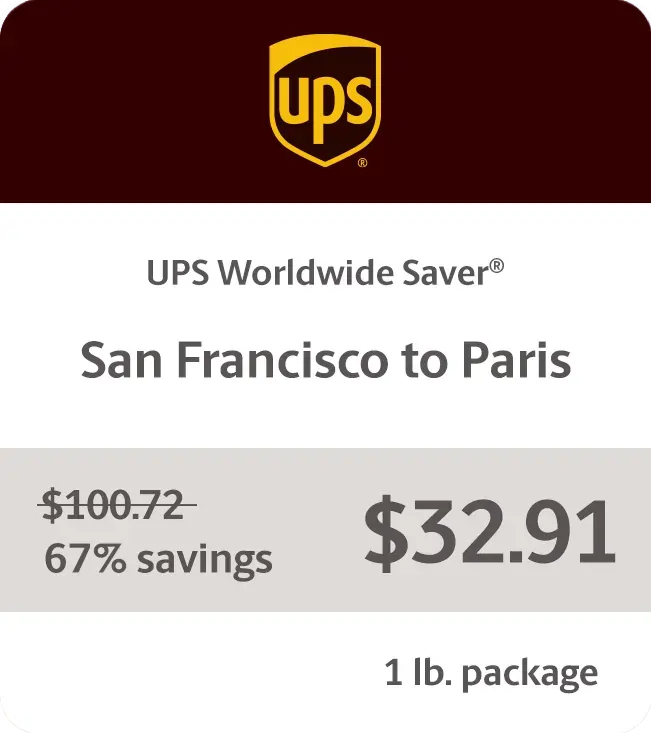
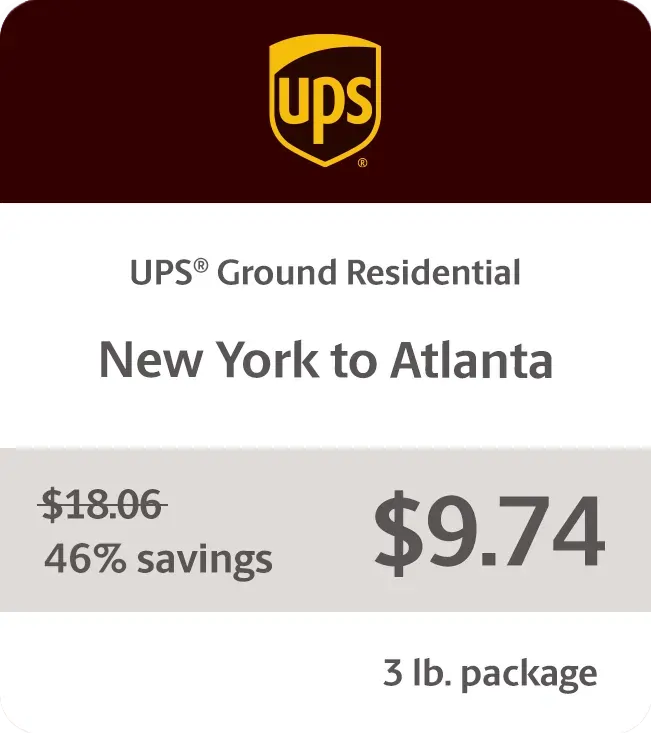
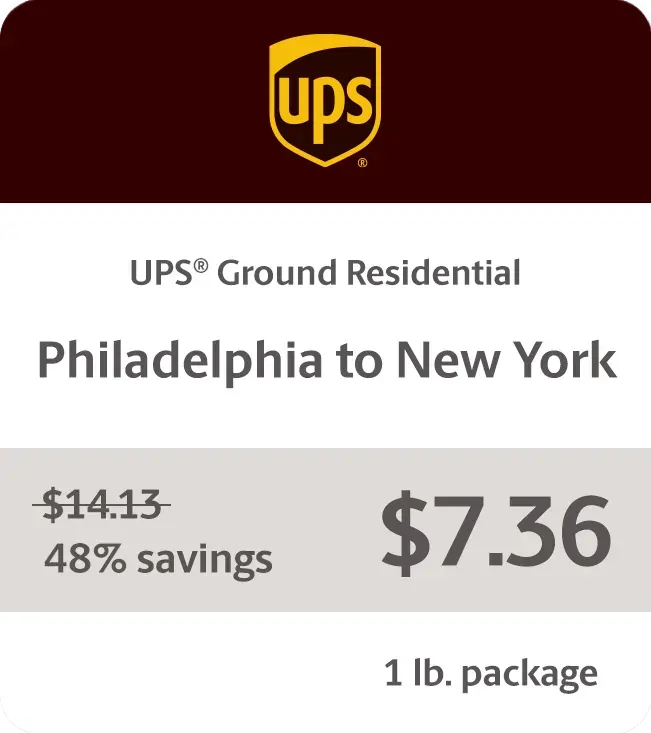
    We’re talking up to 81% off UPS® Ground residential shipments, 75% UPS 2nd Day Air®, and a staggering 85% off UPS® international shipments. Fantastic, right? Whether you’re shipping across town or worldwide, those discounts add up lightning fast. Rollo pays for itself before you can say “happy customer.”

    Sample Rates
    Delivering Results One Shipping Label at a Time

    Don’t just take our word for it, though. Online sellers everywhere are raving about how Rollo has transformed their operations:

    “As a small business owner, managing shipping used to be a hassle,” says Austin, a pottery studio owner. “My favorite thing about using Rollo is probably the ink that it doesn’t use. Previously, I was using a laser printer, and you know, you have to replace the toner every now and then. So the no ink aspect of it is really good.”

    Larger operations are singing Rollo’s praises too. “My favorite thing about my Rollo printer is that it’s completely wireless,” explains Maggie, owner of Colorado Glassworks. “In the past, when I used other printers, I had to attach them to my laptop. Not only is it super easy to print from any location in my shop, but it’s also really reliable.”

    Ensuring High-Quality UPS Labels for Shipping

    Of course, the success of your entire shipping operation hinges on those little sticky labels doing their job perfectly every time. That’s why Rollo is fanatical about ensuring each thermal label meets stringent quality and scannability standards.

    The printer and label materials are optimized to produce razor-sharp barcodes and clearly legible text. This attention to detail prevents headaches and delays that can occur when labels can’t be properly scanned at each checkpoint. Trust us, those preventable hangups are aggravating for all involved.

    Rollo’s UPS Labels for Shipping are Eco-Friendly

    Sure, optimizing operations and cutting costs are stellar benefits. But Rollo also helps make the world a little greener, one thermal shipping label at a time.

    While those old-school label sheets were destined for the landfill, Rollo’s direct thermal labels avoid inks, ribbons, and toners that harm the environment. Even better, the labels themselves are made from recyclable materials like paper, so they can easily avoid a wasteful fate.

    Proper disposal is a snap too. Just follow standard paper recycling guidelines in your area – no need for special handling. It’s a win-win that lets you ship responsibly without sacrificing efficiency.

    Tips for Optimizing Your Shipping Process

    Want to take your shipping game to the next level? Try these tips on for size:

    • 🧼 Keep your thermal printhead clean for the best quality prints.
    • ❄️ Store your thermal paper in a cool, dry place. Heat and humidity are not its friends.
    • 🗂️ Batch your orders and print labels in bulk to save time.
    • ✔️ Double-check addresses before printing to avoid costly mistakes.
    • 🛒 Consider integrating your e-commerce platform with your shipping software for a smoother workflow.
    • 🔄 Regularly update your printer’s firmware to ensure optimal performance and compatibility with UPS systems.

    Final Words

    Optimizing your shipping process is crucial for online sellers. Rollo delivers an efficient, cost-effective solution tailored for small to medium-sized businesses. The wireless printer, intuitive app, and substantial UPS discounts form an unbeatable trifecta that puts you in control of your shipping needs.

    Rollo not only simplifies printing UPS labels for shipping but also saves you time and money while supporting sustainable practices. Join a community of like-minded sellers and experience the future of small-business shipping with Rollo. Sign up for Rollo Ship today and see the difference.

    Discounts off UPS daily rates. Rates are limited to shipping from the U.S. only. Rates and any applicable discounts are subject to change at any time without notice. UPS®, the UPS® brandmark, and the color brown are trademarks of United Parcel Service of America, Inc. Used with permission. © 2020-2025 United Parcel Service of America, Inc. All rights reserved.


    Follow Rollo on:


    Frequently Asked Questions About UPS® Labels for Shipping

    📌 Q: What is the process for creating a UPS® shipping label online?

    💭 A: To create a UPS shipping label online, go to the UPS website or use the Rollo Ship app. Enter the sender and recipient information, package details, and select a shipping service. Then, review the details and print the label.


    📌 Q: Can I schedule a UPS® pickup after creating a shipping label?

    💭 A: Yes, you can schedule a UPS pickup after creating a shipping label. Through the Rollo Ship app, you can schedule the pickup to have it picked up directly in front of your house doorstep at a convenient time.


    📌 Q: What information is required to create a UPS® shipping label?

    💭 A: To create a UPS shipping label, you need the sender and recipient addresses, package weight and dimensions, and the type of shipping service. A tracking number is also generated during this process.


    📌 Q: Are UPS®shipping labels reusable?

    No, UPS shipping labels are not reusable. However, Rollo’s UPS labels for shipping are recyclable, making them an eco-friendly choice for your shipping needs.


    📌 Q: Can I customize a UPS® shipping label with my company logo?
    💭 A: Yes, you can customize a UPS shipping label with your company logo. The Rollo App allows you to add your logo and other custom elements to your shipping labels.
  • UPS® Shipping Labels: How to Print at Home

    UPS® Shipping Labels: How to Print at Home

    In today’s fast-paced world, where timely deliveries are more crucial than ever, UPS shipping labels have become indispensable tools in the shipping and delivery process. For small business owners who are constantly managing a flurry of orders, and for individuals eager to send packages to their loved ones, the ability to create and print UPS shipping labels from home is a game-changer.

    It simplifies what used to be a complex process, making it manageable right from your living room. This guide will walk you through the steps to handle UPS shipping labels efficiently, ensuring your packages are ready for their journey quickly and correctly.

    Understanding UPS® Shipping Labels

    What are UPS Shipping Labels?

    Think of UPS shipping labels as the lifeline for your packages. They’re not just ordinary pieces of paper; they carry the essential DNA of your shipment.

    Each label holds crucial information:

    • where your package is from (origin) = sender’s information: name, address, phone;
    • where it’s headed (destination) = recipient’s information: name, address, phone;
    • the specifics of the shipment = weight, type of UPS service chosen, and more;
    • a unique tracking code
    What are UPS Shipping Labels?

    This code is particularly important as it allows you to follow the package’s journey, ensuring it reaches its destination safely. These UPS labels serve as a critical bridge between you, the shipping service (UPS), and the recipient, making sure everyone is on the same page about where your package is and when it’s expected to arrive.

    By incorporating these steps and understanding the importance of a well-prepared UPS shipping label, you’re not just sending a package; you’re ensuring its safe and timely arrival. Whether you’re shipping a product to a customer or a gift to a family member, the accuracy and clarity of your UPS shipping labels can make all the difference.

    So, let’s delve into the process of creating and printing these labels at home, ensuring your shipments are handled with the utmost care and professionalism.

    The Significance of Shipping Labels in Logistics

    Shipping labels are the backbone of logistics, serving roles far beyond simple identifiers:

    • pivotal in tracking, allowing both senders and recipients to monitor shipments in real time;
    • streamline inventory management and inspection processes;
    • provide essential information on package contents, origins, and destinations.

    Major carriers like UPS understand the importance of efficient shipping labels and invest significantly in their development. This investment enhances the accuracy and organization of shipping processes, ensuring each package is tracked and managed meticulously.

    Creating Your UPS Shipping Labels on UPS.com

    How to create UPS shipping labels on UPS.com
    ⚠️ For those committed to using UPS.com directly: Keep the default settings on UPS.com and crop the label as outlined in this article.


    Ready to print your UPS shipping label at home? Make sure you have a standard printer and either regular printing paper or specialized label sheets. It’s vital to check that your printer has sufficient ink and is functioning properly to avoid any printing issues.

    While you’re exploring ways to print UPS shipping labels at home, don’t miss our comprehensive Money Saving eBay Shipping Label Guide. It’s packed with tips and tricks to help eBay sellers reduce their shipping costs effectively.

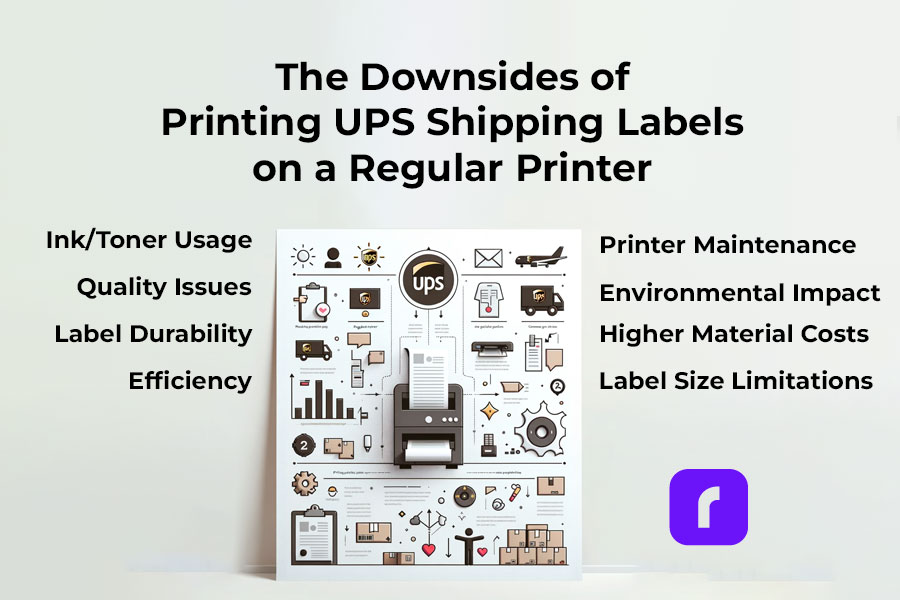
    Downsides of Printing UPS Shipping Labels on a Regular Printer

    ⚠️ Warning! Downsides of Printing UPS Shipping Labels from a Regular Printer

    • ✒️🖨️ Ink/Toner Usage: Regular printers use ink or toner, which can be costly over time, especially for high-volume shipping.
    • 🔎📝 Quality Issues: Inkjet and laser printers may not offer the same clarity and durability in labels as thermal printers, leading to smudging or fading.
    • 🏷️💧 Label Durability: Labels printed from regular printers are often less resistant to water and handling, which can result in damage during transit.
    • 🦥⏳ Efficiency: Printing labels on standard printers is generally slower, making it less efficient for those with frequent or bulk shipping needs.
    • 🏷️📐 Label Size Limitations: Regular printers may have restrictions on the size of labels they can print, potentially complicating the process for specific UPS label sizes.
    • ⬆️💰 Increased Material Costs: Using regular printers requires additional label sheets or sticker paper, which adds to the overall cost.
    • 🔧🖨️ Printer Maintenance: Regular printers used frequently for label printing may require more maintenance and are more prone to jams and other mechanical issues.
    • 🚫 🟢 Environmental Impact: Regular ink printers contribute more to waste and environmental impact compared to thermal printers, which don’t use ink cartridges.
    ⚠️ Keep in mind that you may need to visit a UPS store to print your UPS shipping labels if you don't have a printer or face technical difficulties.

    PRO TIP: 
    For a smoother printing experience, consider using a dedicated shipping label printer compatible with UPS labels. Shipping label printers like the Rollo Wireless Label Printer offer quick, easy, and high-quality printing, ensuring your labels are clear and professional. With the right printer, you can streamline your shipping process, making it more efficient and reliable.

    Ready to elevate your shipping game?
    Opt for a specialized shipping label printer today and experience hassle-free label printing for your UPS shipments!

    Claim UPS shipping discounts

    and

    Print 200 Shipping Labels for Free

    Printing UPS Shipping Labels at Home with a Shipping Label Printer

    ⬇️ Sign Up for Rollo Ship for Free – App or Desktop

    No monthly subscriptions, no download fee, no registration fee.
    You can choose either the mobile app for iOS and Android or the desktop version.


    ➡️ Log Into Rollo Ship


    ➡️ Select or Create a Shipment

    If you have connected stores (like Shopify, Amazon, etc.), simply select an order to print a shipping label. The details for your shipments will be automatically imported. 
    If you don’t have connected marketplaces, click on ‘Create Shipment’ on your home screen and input the sender and recipient’s shipping details.


    ➡️ Verify Order and Input Package Details

    Double-check the recipient’s address and shipping requirements.
    Enter the package dimensions and type.


    ➡️ Choose the UPS Service you need at a cheaper shipping rate.

    Click “Calculate Shipping Rates” to view different delivery options.
    Select the UPS service that suits your needs.
    With Rollo Ship, you benefit from negotiated UPS shipping discounts.


    ➡️ Buy the Shipping Label or Leverage the 200 Free Labels from Rollo.

    The first 200 shipping labels are free, but shipping fees still apply.


    🔚 Print Label

    Ensure your device is linked to the Rollo shipping label thermal printer.
    The label will be formatted perfectly for printing.

    Print clear and durable UPS shipping labels

    Easy, Fast, Convenient, Clearly

    Incorporating the Rollo Ship App and the Rollo Wireless Printer into your shipping process not only simplifies the creation and printing of UPS shipping labels but also ensures accuracy and efficiency. Whether you’re a small business or an individual shipper, these tools provide a seamless, hassle-free shipping experience, giving you more time to focus on what matters most. Start using these innovative solutions today and transform the way you handle your shipping needs.

    Did you know?
    You can easily integrate your existing UPS account with Rollo Ship at no cost, or even set up a new one directly in the Rollo app?
    
    Rollo offers valuable shipping discounts with UPS®, designed to help both regular shippers and businesses reduce their shipping costs. Additionally, Rollo Ship users can conveniently schedule pickups and receive automated tracking updates for their shipments.

    UPS Shipping Label Costs and Validity

    Are UPS Shipping Labels Free?

    While creating a UPS shipping label is generally free, additional costs may apply for features like tracking and insurance. It’s important to factor in these costs when calculating your overall shipping expenses.

    UPS Shipping Label Validity and Expiration

    UPS shipping labels are typically valid for a specific period, often 90 days from the date of creation. It’s crucial to use the label within this validity period to ensure smooth processing of your shipment.

    Handling and Placing UPS Shipping Labels

    Correct Sizes and Placement of UPS Shipping Labels

    Standard UPS labels are typically 4×6 inches. Placement is key; the label should be affixed to the top surface of the package, avoiding any seams or edges where it might get torn or obscured.

    Attaching UPS Shipping Labels on Different Package Types

    Whether you’re using a box or an envelope, make sure the label is securely attached and fully visible. For special package types, consult UPS guidelines to ensure proper labeling.

    Advanced UPS Shipping Label Options

    How to Order, Edit, and Cancel UPS Shipping Labels

    Managing your labels is easy with UPS. You can order, modify, or even cancel your labels through the UPS website or app. This flexibility is particularly useful for businesses managing multiple shipments.

    Special Considerations for International Shipments

    For international shipments, additional details like customs information may be required. Ensure these are accurately filled out to avoid delays.

    Poly Mailer for Shipping

    Tips for Efficient Use of UPS Shipping Labels

    Best Practices for Preparing a UPS Box for Shipping

    Preparing your package for shipping with UPS is crucial for its safe and timely delivery. Here’s how Rollo’s shipping and packaging supplies can enhance this process:

    Select the Right Label:

    Rollo offers eco-friendly, FSC-certified, BPA-free thermal labels in various sizes and colors. For standard shipments, their 4×6 shipping labels in white, available in fanfold or roll, are perfect. They also provide colorful 2-inch circle labels and 2×1 barcode labels on a roll for specialized needs.

    Ensure Secure Packaging:

    Use Rollo’s no-noise heavy-duty shipping tape for a strong seal.

    For items needing extra protection, their bubble mailers and poly mailers come in various sizes. These mailers are extremely lightweight, durable, and water-resistant, and feature a strong peel-and-seal closure, ensuring your package stays secure and protected.

    Weigh Your Package Accurately: Rollo’s heavy-duty shipping scale with a separate reading panel makes it easy to get accurate weight measurements. It features smart functions like Tare (net weight), Hold (weight memory), and Auto Shut Off to save battery life. It’s accurate up to 0.07 ounces and can handle packages up to 110 lbs.

    UPS shipping with cheaper rates when using Rollo Ship app

    Utilizing UPS Shipping Labels for Business Efficiency

    Integrating label creation and printing into your shipping workflow can significantly enhance business efficiency. Rollo products are designed to streamline this process:

    • Use the Rollo Ship App: This app simplifies creating UPS shipping labels, allowing you to consolidate orders from various platforms and generate labels effortlessly. It’s user-friendly and ideal for businesses managing multiple shipments.
    • Print with the Rollo Wireless Label Printer: Combine the Rollo Ship App with the Rollo Wireless Label Printer for a complete labeling solution. This printer is compatible with various label sizes, including 4×6 inches, and uses direct thermal printing technology, which is fast and ink-free. It’s perfect for high-volume shipping needs.
    • Optimize Your Shipping Supplies: With Rollo’s range of packaging supplies, you can ensure that every package you send out is well-prepared. Their hybrid label holder is suitable for both fanfold and roll labels, making it versatile for different packaging needs.

    Final Words

    Printing UPS shipping labels at home makes managing your packages easy and effective. Whether you’re sending something across town or to the other side of the world, the right label is key. It’s a small step, but it makes a big difference in making sure your package gets where it’s going. So, each time you stick that label on, know that you’re on the right track to a successful delivery.

    Discounts off UPS daily rates. Rates are limited to shipping from the U.S. only. Rates and any applicable discounts are subject to change at any time without notice. UPS®, the UPS® brandmark, and the color brown are trademarks of United Parcel Service of America, Inc. Used with permission. © 2020-2025 United Parcel Service of America, Inc. All rights reserved.

    Follow Rollo on:

    FAQs

    📌 Q: What do UPS shipping labels require?

    💭 A: Accurate sender and recipient information, package details, and a tracking number.


    📌 Q: How long are UPS shipping labels good for?

    💭 A: Typically, they are valid for 90 days from the date of creation.


    📌 Q: Can I Handwrite a Shipping Label?


    💭 A: While handwritten labels are possible, printed labels are preferred for accuracy and readability. Handwritten labels must be clear and include all necessary information.


    📌 Q: Do I Need to Print My Own Shipping Label for UPS?


    💭 A: No, you don’t necessarily have to print your own UPS shipping label. If you’re unable to print at home, you can have it printed at a UPS store. For a more convenient solution, consider using the Rollo Ship App and Rollo Wireless Label Printer to create and print your labels easily at home.


    📌 Q: Where to Print a Shipping Label for Free?


    💭 A: While free label printing isn’t typically available, you can get labels printed at UPS stores for a fee. Alternatively, using the Rollo Wireless Label Printer at home can be a more cost-effective solution in the long run, allowing you to print labels anytime you need.
  • How Is a Shipping Label Created?

    How Is a Shipping Label Created?

    and what does the ‘Shipping label created’ status mean? Shipping labels are a crucial component of the logistics and e-commerce industries, ensuring smooth and accurate package delivery. The ‘Label Created Not Yet in System’ status means the package is not moving through the carrier’s network but is being prepared for pickup. In this comprehensive guide, we will explore how to create shipping labels for major couriers, dive into the step-by-step process of using the Rollo Ship App, and answer common questions related to shipping label creation.

    📦 Creating Shipping Labels

    Creating shipping labels is a crucial step in the shipping process, as they ensure packages are correctly routed to their destinations while providing tracking capabilities. Shipping labels can be generated manually or through online shipping platforms, depending on the shipper’s preference and the resources available. When a shipping label is created but not yet scanned by the carrier, the package is not officially in the carrier’s system for tracking purposes.

    ✉️ Components of a Shipping Label

    Shipping labels contain the following essential information:


    Manual Shipping Label Creation

    Manually creating shipping labels involves writing or typing the necessary information on a label, which is then affixed to the package. This process can be time-consuming and prone to errors, as it requires looking up addresses, service codes, and other details. However, it can be a viable option for small businesses or individuals with a low volume of shipments.

    Online Shipping Platforms

    Online shipping platforms offer a more efficient and accurate method of generating shipping labels. These platforms, often provided by couriers or third-party companies, allow users to input the required information, select shipping services, and print shipping labels directly from their computers or mobile devices.

    Some advantages of online shipping platforms include:

    💜 Automation: The platform can automatically retrieve addresses and other details from connected e-commerce platforms or address books, reducing the risk of errors.

    💜 Shipping cost calculation: Online platforms can calculate shipping costs based on package dimensions, weight, and shipping service, helping users make informed decisions and avoid unexpected fees.

    💜 Bulk label creation: Users can create multiple shipping labels at once, streamlining the process for businesses with a high volume of shipments.

    💜 Integration with couriers: Online shipping platforms often integrate directly with major couriers, allowing users to schedule pickups, track packages, and manage shipments more efficiently.

    Shipping labels are created by either manually inputting the necessary information onto a label or using an online shipping platform to generate and print the labels. Online platforms offer increased efficiency, accuracy, and convenience compared to manual label creation, making them a popular choice for businesses and individuals alike.

    Creating Shipping Labels for Major Couriers

    Creating shipping labels for major couriers such as FedEx, UPS, and USPS is an essential step in ensuring accurate and timely package delivery. Each courier has its own online shipping platform, which streamlines the label creation process. Additionally, understanding the ‘Label Created Not Yet in System’ shipping status is crucial. This status indicates that the order is prepared for shipment, with the shipping label generated, or that the order is still in the fulfillment process within the warehouse. Below, we provide a more detailed overview of creating shipping labels for each of these major couriers.

    Creating Shipping Labels for Major Shipping Carriers

    How to Create a FedEx Shipping Label

    FedEx offers a user-friendly online platform called FedEx Ship Manager for creating shipping labels. Follow these steps to generate a FedEx shipping label:

    🐾 1. Register for a FedEx account:
    If you don't have a FedEx account, sign up for one at fedex.com.
    
    🐾 2. Access FedEx Ship Manager: 
    Visit fedex.com and log in to your account. Click "Ship" in the top menu to access FedEx Ship Manager.
    
    🐾 3. Create a new shipment: 
    Select "Create a Shipment" from the main menu to start the process.
    
    🐾 4. Enter shipment details: 
    Fill in the necessary information, including sender and recipient addresses, package dimensions, weight, and shipping service. You can also add optional services, such as insurance or signature confirmation, if desired.
    
    🐾 5. Choose shipping options:
    Select the desired shipping service based on delivery speed, cost, and other factors. FedEx Ship Manager will display the available options and their corresponding rates.
    
    🐾 6. Review and confirm details: 
    Double-check the shipment information for accuracy and make any necessary adjustments before proceeding.
    
    🐾 7. Pay and print the shipping label: 
    Enter your payment information and complete the transaction. Once the payment is processed, you can print the shipping label using a standard or thermal printer. Affix the label to your package, ensuring it is visible and securely attached.
    

    How to Create a UPS Shipping Label

    UPS provides an online shipping platform called UPS CampusShip, which simplifies the shipping label creation process. Here are the steps to create a UPS shipping label:

    🐾 1. Register for a UPS account: 
    If you don't have a UPS account, sign up for one at ups.com.
    
    🐾 2. Access UPS CampusShip: 
    Visit ups.com and log in to your account. Click "Shipping" in the top menu and select "Create a Shipment" to access UPS CampusShip.
    
    🐾 3. Enter shipment details: 
    Input the necessary information, such as sender and recipient addresses, package dimensions, weight, and shipping service. You can also add optional services like insurance or signature confirmation, if needed.
    
    🐾 4. Choose shipping options: 
    Select the desired shipping service based on factors like delivery speed, cost, and availability. UPS CampusShip will display the available options along with their rates.
    
    🐾 5. Review and confirm details: 
    Review the shipment information for accuracy and make any necessary adjustments.
    
    🐾 6. Pay and print the shipping label: 
    Enter your payment information and complete the transaction. Once the payment is processed, print the shipping label using a standard or thermal printer. Attach the label to your package, making sure it is visible and securely fastened.

    How to Create a USPS Shipping Label

    USPS offers an online shipping platform called USPS Click-N-Ship, which streamlines the process of creating shipping labels. Follow these steps to generate a USPS shipping label:

    🐾 1. Register for a USPS account: 
    If you don't have a USPS account, sign up for one at usps.com.
    
    🐾 2. Access USPS Click-N-Ship: 
    Visit usps.com and log in to your account. Click "Click-N-Ship" in the top menu to access the platform.
    
    🐾 3. Create a new shipment: 
    Select "Create a Label" from the main menu to start the process.
    
    🐾 4. Enter shipment details: 
    Fill in the necessary information, including sender and recipient addresses, package dimensions, weight, and shipping service. You can also add optional services, such as insurance or signature confirmation, if desired.
    
    🐾 5. Choose shipping options: 
    Select the desired shipping service based on factors like delivery speed, cost, and availability. USPS Click-N-Ship will display the available options along with their rates.
    
    🐾 6. Review and confirm details: 
    Double-check the shipment information for accuracy and make any necessary adjustments before proceeding.
    
    🐾 7. Pay and print the shipping label: 
    Enter your payment information and complete the transaction. Once the payment is processed, print the shipping label using a standard or thermal printer. Affix the label to your package, ensuring it is visible and securely attached.
    A Guide to Creating Shipping Labels

    Additional Tips for Creating Shipping Labels with Major Couriers

    When creating shipping labels with FedEx, UPS, or USPS, keep these tips in mind to ensure a smooth and efficient process:

    💜 Keep your address book updated: Maintain an up-to-date address book within your courier account to streamline the label creation process and minimize the risk of errors.

    💜 Save shipment preferences: Save your preferred shipping services and options within your courier account for quick and easy access during future shipments.

    💜 Monitor your shipments: Track your packages using the tracking numbers provided on the shipping labels to stay informed about their progress and address any issues that may arise.

    💜 Consider using shipping software: Shipping software solutions, like ShipStation or Shippo, can integrate with multiple couriers and e-commerce platforms, simplifying the shipping label creation process and providing additional features like bulk label creation, discounted shipping rates, and centralized shipment management.


    By following the steps and tips outlined above, you can efficiently create shipping labels with major couriers like FedEx, UPS, and USPS, ensuring accurate and timely delivery of your packages.

    Step-by-Step Guide to Creating a Shipping Label with the Rollo Ship App

    The Rollo Ship App is a convenient and efficient tool for creating shipping labels, offering compatibility with various platforms and shipping carriers. The following is a detailed guide on using the Rollo Ship App to generate shipping labels.


    ⏱️ How Long Does It Take to Create a Shipping Label?

    The time required to create a shipping label varies depending on the method used. For online platforms, it can take just a few minutes to input the necessary information and generate the label. Manual label creation can take longer, especially if you need to look up addresses, service codes, or other details.

    Time Required to Create Shipping Labels and Advantages of Rollo Ship App

    Method/Platform Time Required to Create Shipping Label Additional Considerations
    Manual Label Creation 10-15 minutes (Varies) Need to look up addresses, service codes, and other details.
    Online Platforms (UPS, USPS, FedEx) 5-10 minutes (Varies) Requires visiting individual courier websites, creating an account for each, and logging in separately.
    Rollo Ship App 2-5 minutes (Varies) Centralized platform for managing shipments with multiple couriers; no need to visit separate websites.

    Advantages of the Rollo Ship App

    The Rollo Ship App offers several advantages over traditional methods of shipping label creation, such as manual creation or using individual courier websites:

    By leveraging the Rollo Ship App’s unique features and capabilities, users can save time and effort in creating shipping labels while enjoying a more efficient and streamlined shipping experience.

    ➡️ What Happens After a Shipping Label Is Created

    Once the shipping label has been created and affixed to the package, it is ready to be handed over to the courier for processing and delivery. The courier scans the label’s barcode to register the package into their tracking system and route it to the destination. Throughout its journey, the package’s progress can be monitored using the tracking number on the shipping label.

    Steps UPS Rollo Ship App
    1. Handover UPS Store, UPS Drop Box, UPS Access Point, or scheduled pickup Appropriate courier location or scheduled pickup
    2. Barcode Scanning Package registered in UPS tracking system and routed based on destination Package registered in selected courier’s tracking system and routed based on destination
    3. Sorting & Routing UPS sorting facilities Selected courier’s sorting facilities
    4. Tracking Updates Package movement, estimated delivery time, possible delays Centralized tracking for multiple couriers, package movement, estimated delivery time, possible delays
    Stages of Shipping after status “Shipping Label Created” with UPS vs Rollo Ship App
    Steps USPS Rollo Ship App
    1. Handover USPS Post Office, USPS Drop Box, USPS Collection Point, or scheduled pickup Appropriate courier location or scheduled pickup
    2. Barcode Scanning Package registered in USPS tracking system and routed based on destination Package registered in selected courier’s tracking system and routed based on destination
    3. Sorting & Routing USPS sorting facilities Selected courier’s sorting facilities
    4. Tracking Updates Package movement, estimated delivery time, possible delays Centralized tracking for multiple couriers, package movement, estimated delivery time, possible delays
    Stages of Shipping after status “Shipping Label Created” with USPS vs Rollo Ship App
    Steps FedEx Rollo Ship App
    1. Handover FedEx Office, FedEx Drop Box, FedEx Authorized ShipCenter, or scheduled pickup Appropriate courier location or scheduled pickup
    2. Barcode Scanning Package registered in FedEx tracking system and routed based on destination Package registered in selected courier’s tracking system and routed based on destination
    3. Sorting & Routing FedEx sorting facilities Selected courier’s sorting facilities
    4. Tracking Updates Package movement, estimated delivery time, possible delays Centralized tracking for multiple couriers, package movement, estimated delivery time, possible delays
    Stages of Shipping after status “Shipping Label Created” with FedEx vs Rollo Ship App

    What Does “Shipping Label Created” Mean with Different Couriers ❓

    “Shipping label created” is a status update that indicates the shipper has generated a shipping label for the package, but the courier has not yet received or scanned it into their system. This status may vary slightly among different couriers. It means the package has not yet been scanned into the carrier’s system:

    'Shipping Label Created' Status with Carriers

    How Long After Shipping Label Created UPS Ships

    For UPS, the status "Label Created" or "Order Processed: Ready for UPS" signifies that: 
    - the shipping label has been created,
    - only the shipping cost has been settled,
    - UPS is awaiting the package to process it for its first transit scan.

    This status does not indicate the package moving through the carrier's network, but rather that the retailer is preparing the order for pick up from the warehouse.

    Once UPS scans the package, the status will update to "In Transit."
    Seldomly, it may also mean that your parcel is yet to be dispatched.
    Usually it takes a couple of days, but sometimes it may take around 5 business days.

    How Long After Shipping Label Created FedEx Ships


    For FedEx, the status "Label Created" or "Shipment information sent to FedEx" indicates that:
    - the shipper has generated the shipping label, and FedEx is awaiting the package.
    
    - FedEx has received the information and is preparing for pickup, not having scanned your parcel yet.
    
    The status will change to "Picked Up" or "In Transit" once FedEx receives and scans the package.
    Usually, FedEx generates a tracking number within 24 hours of the label being generated.

    What Does Shipping Label Created-USPS Awaiting Item

    For USPS, the status "Shipping Label Created, USPS Awaiting Item" means:
    the shipper has generated the shipping label, but USPS has not yet received the package.
    
    The status will update to "Accepted" or "In Transit" once USPS scans the package into their system.


    Tip for eCommerce sellers: Sometimes packages get stuck for a few days on status “label created”, thus, it may be a good idea to postdate your shipping label and be proactive with your customer, informing them on a possible delay. This way, you will reduce the chance for customer dissatisfaction. 

    Note: If you get stuck on a “label created” status with any of the carriers, try reaching out to their customer service to double-check if there is any technical issue and expedite the process. To understand more on another status “Ready to Ship”, refer to this article.

    Conclusion

    Understanding the process of creating shipping labels and the meaning of the “Shipping Label Created” status is essential for both e-commerce businesses and customers. The Rollo Ship App is an excellent tool for streamlining label creation and shipment management, ensuring a smooth and efficient shipping experience. Familiarizing yourself with the specific requirements and processes of major couriers like FedEx, UPS, and USPS will further enhance your shipping expertise and help avoid potential delays or issues in package delivery.

    Follow Rollo on:

    Frequently Asked Questions

    Q: What does “shipping label created” mean?
    Short Answer: A courier is yet to receive/scan your package.

    A: This status indicates that the shipper has generated a shipping label for your package, but the courier hasn’t yet received or scanned the item into their system.
    Q: How long does it take for a package to be shipped after a shipping label is created?
    Short Answer: Generally a few days post creating the label.

    A: The timing can vary by courier and the shipper’s schedule. Generally, the package is handed over to the courier within a few days of the shipping label being created.
    Q: What should I do if the status of my package is stuck on “shipping label created”?
    Short Answer: Contact the customer service of the carrier.

    A: Should the status of your package remain unchanged for an extended period, consider contacting the customer service of the respective courier for assistance. They can provide more information or help resolve any potential issues.
  • How to Get a UPS® Thermal Printer for Free?

    How to Get a UPS® Thermal Printer for Free?

    With the rapid expansion of the e-commerce market and escalating shipping costs, small businesses are continuously seeking methods to optimize their operations and reduce expenses. One viable solution is to print shipping labels in-house, which can result in substantial savings. Some items or services, such as printing supplies and equipment, can be obtained cost-free, adding to the convenience and benefits. In this comprehensive guide, we delve into the possibility of renting a thermal printer from UPS and compare it to other options such as purchasing a Rollo thermal printer. We will discuss the advantages and disadvantages of renting a UPS thermal printer, compare it with alternatives from USPS and FedEx, and highlight the benefits of investing in a Rollo printer for your small business.

    Does UPS offer a thermal printer for shipping labels for free?
    UPS offers the Zebra LP 2844 thermal printer for rent to businesses, which allows them to print shipping labels without making a significant upfront investment. 
    But is it entirely free?
    However, it is not entirely free, as there is usually a small weekly fee depending on your shipping volume. In some cases, if you have a high shipping volume, UPS may waive the rental fee.
    Who can qualify for a free UPS thermal printer?
    To qualify for a thermal printer from UPS, you will need to open a UPS business account and discuss the rental option with your account manager. 


    It is important to keep in mind that while renting a UPS thermal printer may seem like an affordable option, there are ongoing fees and limitations to consider, such as limited functionality and courier options.

    UPS® Thermal Printer Rental: Pros and Cons

    Let’s examine the pros and cons of renting a UPS thermal printer in more detail.

    Pros:

    Reduced initial investment:
    By renting a thermal printer from UPS, you can avoid the substantial upfront cost of purchasing a printer, which can be particularly beneficial for small businesses with limited capital.

    Free shipping supplies:
    UPS provides free branded boxes, shipping tags, customs forms, label pouches, and blank thermal printing labels, helping you save on shipping costs and further enhancing the cost-effectiveness of renting a printer.

    Basic printing capabilities:
    The Zebra LP 2844 is a simple, functional printer that accomplishes its primary purpose without any unnecessary features. It’s a practical option for businesses seeking a no-frills solution for printing shipping labels.

    Cons:

    Limited functionality:
    The rented printer lacks advanced features such as wireless printing and compatibility with multiple label sizes and brands. This limitation may hinder your ability to adapt to evolving business needs or take advantage of more efficient printing solutions.

    Ongoing rental fee:
    Although the weekly fee for renting a printer is relatively small, it can accumulate over time, especially if you are not shipping at high volumes. In the long run, purchasing a printer outright may be more cost-effective.

    Limited courier options:
    Renting a UPS thermal printer may tie you to UPS as your primary shipping provider, restricting your ability to select the courier that best aligns with your business needs and potentially limiting your ability to negotiate more favorable shipping rates.

    Do USPS and FedEx Offer Thermal Printers for Free?

    USPS and FedEx also offer thermal printers to their customers, but their programs and availability may differ from UPS. It is crucial to contact your local post office or FedEx account manager to learn about their specific offerings and requirements. By doing so, you can make a well-informed decision about which provider’s thermal printer rental program best suits your business needs.

    Step-by-Step Guide: How to get a free thermal printer from UPS

    To obtain a thermal printer from UPS, follow these steps:

    Step 1: 💻 Create an online business account with UPS.
    Visit the UPS website and sign up for a business account, providing all the necessary information.
    Step 2: 📲 Call UPS customer support.
    Once your account is set up, contact UPS customer support at 1-800-742-5877. Their representatives are available Monday through Friday from 7 am to 9 pm EST.
    Step 3: 🧑 Speak to a customer service representative.
    When prompted by the automated system, enter 0 on your keypad to be directed to a customer service representative. Request that they connect you with an account manager to activate and set up your account.
    Step 4: 💲 Discuss renting a printer from UPS.
    Talk to your account manager about renting a printer from UPS. The company typically charges a weekly fee for printer rental, but the account manager may waive this fee if you are shipping at high volumes. If the UPS thermal printer breaks, UPS will provide a replacement printer free of charge by contacting the account manager.
    Step 5: 🗎 Understand qualification requirements.
    Be aware that qualifying for a free thermal printer from UPS is determined by your monthly shipping volume. You may have to pay a weekly fee if you are not shipping frequently. Ensure you understand these requirements before committing to a rental agreement.

    Maintenance and Support for The Granted UPS Thermal Printer

    If you encounter issues with your rented UPS thermal printer, contact UPS customer support for assistance. They can provide troubleshooting tips or, in some cases, replace the printer if necessary. Regular maintenance, such as cleaning the print head and replacing worn parts, is essential to ensure the printer’s optimal performance and extend its lifespan.

    Freebies and Discounts from Shipping Companies and Rollo

    Shipping companies like UPS, USPS, and FedEx often offer free shipping supplies, such as boxes, labels, and packaging materials, to help businesses save on costs. You can order free shipping supplies from UPS from their website or via phone during their work hours. According to UPS, it usually takes 5 to 7 business days for these to be received. As stated by them, they are free of charge. Often, pre-printed UPS labels are not available online.

    These freebies can significantly reduce your shipping expenses, especially for small businesses with limited budgets.

    Additionally, Rollo provides shipping discounts through the Rollo Ship App up to 90% off, along with freebies like sample labels when you purchase a Rollo printer.

    Rollo Thermal Printers: A Better Solution for Small Businesses

    Rollo shipping label printer: a better solution for small businesses

    Despite the initial investment, purchasing a Rollo thermal printer can be a more cost-effective and versatile solution for your small business. Here’s why:

    🚀 Compatibility with multiple couriers:
    Rollo printers can print shipping labels for UPS, USPS, and FedEx, giving you more freedom in choosing the courier that fits your business needs. This flexibility allows you to take advantage of the most competitive shipping rates and services.
    🎇 Advanced features: 
    Rollo printers offer advanced features such as wireless printing and compatibility with various label sizes and brands, providing more flexibility in your shipping process. These features can improve efficiency and potentially save you time and money in the long run.
    🚀 Integration with platforms and operating systems: 
    Rollo printers seamlessly integrate with popular e-commerce platforms and operating systems, streamlining your shipping workflow. This integration can simplify your shipping process, allowing you to spend more time focusing on growing your business.

    Maintenance and Support of Your Rollo Thermal Printer

    Proper maintenance and support are essential for the longevity and optimal performance of your Rollo thermal printer. Here is a comprehensive guide to help you maintain your Rollo printer and seek support when needed:

    By following these maintenance and support guidelines, you can ensure the longevity and optimal performance of your Rollo thermal printer, ultimately saving your small business time and money while streamlining your shipping process.

    Step-by-Step Guide: Printing UPS Labels with Rollo using blank thermal labels

    To print UPS shipping labels using your Rollo printer, follow these steps:


    Refurbished Rollo Printers: A Budget-Friendly Alternative

    If you are on a tight budget, consider purchasing a refurbished Rollo printer. Refurbished printers offer a cost-effective solution without compromising on quality or performance.
    These printers have been carefully:
    ✅ inspected

    ✅ repaired

    ✅ tested
    to ensure they meet Rollo’s high-quality standards.


    As a result, you can trust that you are investing in a reliable and efficient thermal printer for your small business.

    One of the main advantages of choosing a refurbished Rollo printer is the significant cost savings compared to buying a brand-new device. This makes it an attractive choice for budget-conscious small businesses looking to optimize their shipping processes without breaking the bank.

    Despite being refurbished, these printers are still certified by Rollo and come with a six-month warranty, providing you with peace of mind and protection for your investment. This warranty ensures that if any issues arise within the covered period, Rollo will provide support and, if necessary, repair or replace the printer.

    In summary, refurbished Rollo printers offer a budget-friendly alternative that allows you to take advantage of the benefits of a Rollo thermal printer without incurring the full cost of a brand-new device. With the backing of a six-month warranty from Rollo, you can confidently invest in a refurbished printer, knowing that you have a reliable and cost-effective solution for your small business’s shipping needs.


    Comparing the UPS thermal printer and Rollo Printers

    The Zebra LP 2844 and Rollo X1040 are both thermal printers designed for printing shipping labels. Here’s a comparison of their features and capabilities:

    Zebra LP 2844, offered for rent by UPS:

    • Connectivity: Wired (USB, parallel, and serial interfaces)
    • Intended for: Desktop
    • Label Compatibility: Limited to specific label sizes and brands
    • Print Speed: Up to 4 inches per second
    • Resolution: 203 dpi
    • Courier Compatibility: Primarily designed for UPS, but can be used for other couriers with some adjustments
    • Wireless Printing: Not available
    • Integration: Limited integration with e-commerce platforms and operating systems
    • Cost: Available for rent from UPS, usually with a small weekly fee. It is a RENTAL. To be purchased it can be found for $184.89 as new and $149.95 as used on different marketplaces.
    • Model from: 2009 onwards

    Rollo X1040 Shipping Label Printer:

    • Connectivity: Wired (USB) and Wireless (Wi-Fi)
    • Intended for: Desktop and Mobile
    • Label Compatibility: Works with various label sizes and brands
    • Print Speed: Up to 4.7 inches per second
    • Resolution: 203 dpi
    • Courier Compatibility: Works with multiple couriers, including UPS, USPS, and FedEx
    • Wireless Printing: Available. WiFi and AirPrint Certified.
    • Integration: Seamless integration with popular e-commerce platforms (Etsy, eBay, Shopify, Magento, PayPal, Walmart, Amazon, Wix, WooCommerce, and more) and operating systems (Linux, Mac, Windows, Android, iOS)
    • Cost: One-time purchase, no ongoing rental fees. New from $179.99 and refurbished from $159.99.
    • Model from: 2016 onwards
    Comparing UPS Thermal Printer and Rollo Shipping Label Printers

    Comparison between The USPS Thermal Printer for Rent and Rollo Thermal Printers

    FeatureZebra LP 2844Rollo X1040
    ConnectivityWiredUSB & Wireless
    Label CompatibilityLimitedVarious
    Print SpeedUp to 4 ipsUp to 4.7 ips
    Resolution203 dpi203 dpi
    Courier CompatibilityUPS (primarily)UPS, USPS, FedEx
    Wireless PrintingNot availableAvailable, WiFi & AirPrint
    IntegrationLimitedSeamless
    CostRental feeOne-time purchase


    Note: Based on the comparison, the Rollo X1040 offers more flexibility, advanced features, and compatibility with multiple shipping couriers, making it a more versatile choice for small businesses. No wonder it is considered one of the best thermal printer for UPS labels.

    Conclusion

    Renting a UPS thermal printer may seem like a convenient and affordable option for small businesses, but it is essential to consider the long-term benefits and limitations. Investing in a Rollo thermal printer offers greater flexibility, advanced features, and compatibility with multiple shipping couriers, making it a smart choice for growing businesses. With easy integration, wireless printing capabilities, and ongoing support, a Rollo printer can help streamline your shipping process and ultimately save your business time and money.

    By weighing the pros and cons of renting a UPS thermal printer against purchasing a Rollo printer or even considering a refurbished Rollo printer, you can make the best decision for your small business’s unique needs. Regardless of the option you choose, it’s crucial to remain informed about the latest shipping solutions and strategies to continue optimizing your operations and staying competitive in the ever-evolving e-commerce landscape.

    *Discounts off UPS daily rates. Rates are limited to shipping from the U.S. only. Rates and any applicable discounts are subject to change at any time without notice. UPS®, the UPS® brandmark, and the color brown are trademarks of United Parcel Service of America, Inc. Used with permission. © 2020-2025 United Parcel Service of America, Inc. All rights reserved.


    Follow Rollo on:

    Frequently Asked Questions about UPS Thermal Printers

    Q: What thermal printer does UPS use?

    Short Answer: Zebra LP 2844 for weekly rent.
    A: UPS utilizes the Zebra LP 2844 thermal printer for printing shipping labels, offering it as a rental option for businesses to streamline their shipping processes.


    Q: Does UPS give out free thermal printers?

    Short Answer: For rent, not entirely free.
    A: UPS does not provide completely free thermal printers; however, they offer rental options for businesses, sometimes with a small weekly fee, depending on shipping volume.


    Q: How to order supplies from UPS?

    Short Answer: Via phone during business hours or via their website.
    A: To order supplies from UPS, visit their website, log in to your UPS account, and navigate to the “Order Supplies” section. Select the desired items, add them to your cart, and complete the checkout process. Alternatively, contact them during business hours on the phone and speak to a representative.