Hey there, busy entrepreneurs! You’re busy shipping out your products and your carrier of choice is FedEx, but how do you print the FedEx shipping label? We’ve got an awesome trick that’ll make this process a total breeze. Say goodbye to those pesky old methods and hello to slick, streamlined efficiency with Rollo’s killer integration for FedEx shipping labels.
[ez-toc]
Yeah, you read that right – Rollo is the ultimate FedEx shipping label solution when it comes to getting those precious parcels out the door. This nifty app will save you loads of time and cash, taking a huge load off your mind. So quit sweating the small stuff and let’s dive into how Rollo can transform your FedEx shipping process into a well-oiled (yet totally simple) machine.
Setting Up Your FedEx Account with Rollo
Integrating your FedEx account with Rollo is a crucial step to streamline your shipping process. By linking your accounts, you unlock a range of features designed to save you time and money, such as instant label printing, discounted shipping rates, and seamless order management. This setup ensures that all your shipping details are automatically synced, eliminating the need for manual data entry and reducing the risk of errors. Plus, with Rollo’s user-friendly interface, you can complete this integration in just a few simple steps.
Rollo uses advanced encryption and security protocols to ensure your data is protected during the integration process. This ensures that your FedEx account details and shipping information remain confidential and secure.
Troubleshooting Tips:
Issue: Unable to link FedEx account. Solution: Double-check that your FedEx account details are correct and that your internet connection is stable. If the problem persists, contact Rollo’s support team for assistance.
Issue: Labels not printing correctly. Solution: Ensure that your printer settings are configured correctly and that your printer is compatible with thermal label printing. Refer to the printer’s manual or Rollo’s support for detailed instructions.
Detailed Benefits:
By integrating FedEx with Rollo, you can take advantage of exclusive discounted shipping rates, saving you significant costs on each shipment. Additionally, the seamless syncing of order details from multiple e-commerce platforms means less time spent on manual data entry and more accurate shipping information.
Benefits of Using Rollo for FedEx Shipping Labels
Now that you’re all set up, let’s talk about why Rollo is worth its weight in gold (actually, it’s really affordable but you get the metaphor).
Think about all those times you’ve had to:
✏️ Manually punch in all those fiddly shipping details
💻 Keep updating annoying desktop software
📄 Physically print out label after label
What a colossal pain, right? With Rollo, you can kiss those hassles goodbye and embrace a whole new level of ruthless efficiency:
⚡ Lightning-fast label printing: Just a couple of clicks and taps and bam – pro-looking shipping label ready to slap on your package.
💸 Cost-cutter supreme: Rollo negotiates exclusive rates with FedEx to bring you the lowest possible prices. More money in your pocket? Yes, please!
🎨 Custom Label Design: Rollo’s label design app lets you create your own custom labels, adding a personal touch to your packages.
Speaking of which, new users can sign up with Rollo Ship for free! There are zero monthly fees, and the first 200 labels are on us. So why not give Rollo a whirl and experience the difference for yourself?
Okay, but what if your shipping needs are a bit more advanced? Well, good news – Rollo has integrated a bunch of boss features to cater to power users too:
🚚 Schedule Pickups Effortlessly: Just a few taps in the app lets you set up a hassle-free pickup from FedEx, right at your doorstep. No more schlepping boxes to the store!
📦 Ship with FedEx using Rollo: Directly ship through the Rollo App by linking your FedEx® account. Generate affordable FedEx shipping labels, paying just 5 cents per label after your initial 200 complimentary labels.
🖨️ Flexibility in Printing: Generate labels via any printer, not just Rollo’s. Rollo Ship is accessible on iOS, Android, and Desktop, allowing you to manage orders from multiple platforms under one account.
⚙️ Instant Set-Up: Seamlessly integrate with your online stores, including Amazon, eBay, BigCartel, Shopify, and many more. With our pre-built connectors, witness your orders sync with Rollo Ship in real time.
❌ No Need for Rollo Products: You don’t need to purchase any Rollo products to use Rollo Ship. It caters to both personal and professional shipping needs, offering domestic and international delivery services.
⚡ Efficiency at its Peak: Print numerous labels simultaneously, and provide automatic recipient tracking updates for a seamless customer experience. There are no requirements for minimum shipping volume.
🔄 Master Returns Like a Pro: Creating and managing return labels is an absolute breeze. Just specify the instructions when creating your shipping label, and it generates a returns label automagically.
If you’re running an online store, you’re going to love how Rollo gels with all the major e-commerce platforms out there. Here’s just a taste:
WooCommerce: Simple but powerful integration to synchronize all your WooCommerce orders with shipping details.
Shopify: With the official Shopify app, you can print shipping labels directly from your Shopify dashboard. Easy peasy!
Magento: The Rollo plugin brings all its FedEx wizardry to your Magento storefront.
No matter which platform is powering your bustling online empire, you can count on Rollo to keep those orders flying out quickly and affordably.
Additionally, Rollo is continuously developing new integrations with various e-commerce platforms, so keep an eye out for even more seamless e-commerce solutions!
Tips and Best Practices for Using Rollo with FedEx
To wrap things up, let’s run through a few pro tips to ensure you’re squeezing every last drop of awesomeness from the Rollo/FedEx combo:
🖨️ Go inkless: The Rollo’s FedEx shipping label printer can print about 650,000 shipping labels before needing replacement. Say goodbye to ink and toner expenses!
🚚 Consolidate shipments: If you’ve got a bunch of small orders going to the same area, you can easily bundle them into a single, more affordable shipment.
📦 Bulk up on supplies: Rollo can auto-order FedEx packaging and have it delivered right to your door. Hello, ultimate convenience!
💾 Saved settings: Once you’ve got all your preferences just right, save them as a template to breeze through future shipments.
And hey, if you stumble on any other brilliant tips or workflow hacks of your own, we’d love for you to share them with the Rollo community on Facebook! They’re all about that continuous improvement.
Final Words
Well, there you have it – literally everything you need to know about making FedEx shipping a total breeze with Rollo. This integration truly is a game-changer for small businesses and solo entrepreneurs working hard to grow their operations.
With Rollo handling the logistics like a well-oiled machine, you can finally shelve all those frustrating shipping tasks and get back to focusing on the really important stuff – developing killer products, providing amazing service, and hustling towards your big dreams.
So what are you waiting for? Give Rollo a shot today with that exclusive discount, and experience a whole new level of seamless shipping success. Your precious time (and sanity) will thank you!
Follow Rollo on:
Frequently Asked Questions About FedEx Shipping Labels
📌 Q: How do I create a FedEx shipping label with Rollo?
💭 A: Creating a FedEx shipping label with Rollo is simple. First, sync your FedEx account through the Rollo integrations menu. Then, go to the shipment creation section and enter key details like the destination address, package weight, and dimensions. Once everything is filled in, click the button to generate your professional shipping label.
📌 Q: Does FedEx provide free shipping labels?
💭 A: Yes, FedEx provides free return shipping labels in certain situations, particularly for businesses with a returns policy. Including a prepaid label when shipping orders is a smart move. Rollo makes creating and managing these return labels easy and efficient.
📌 Q: How can I ship with FedEx without a printer?
💭 A: Shipping with FedEx without a printer is easy. Generate a QR code through the FedEx mobile app or Rollo’s integration. Then, visit any FedEx location, where a team member can scan and print the code onto a shipping label for you.
📌 Q: How do you make a shipping label for FedEx?
💭 A: Traditionally, you might use the FedEx website or mobile apps, but Rollo simplifies the process. With Rollo’s integration, you can print shipping labels with just a few taps, making the process quick and hassle-free.
In today’s rapidly evolving eCommerce world, the efficiency of your shipping operations can make or break your business. One cornerstone of that efficiency is having a reliable FedEx label printer. Whether you’re an established online retailer, a growing small business, or an individual looking to simplify your shipping process, choosing the right FedEx label printer is crucial.
So, how do you go about selecting the best label printer for FedEx shipping labels? In this in-depth guide, we aim to provide comprehensive insights. We’ll delve into the impressive features of Rollo printers and the Rollo Ship app, which, when used in tandem, can significantly streamline your FedEx label printing processes.
Why Choose a Thermal Printer for Printing Shipping Labels from FedEx
When considering various FedEx label printers, you’ll find numerous options, including inkjet and laser printers. However, when it comes to printing FedEx shipping labels, thermal printers often hold the edge. Why is that?
Key Advantages of Thermal Printers as FedEx Label Printers
No Ink or Toner: One of the biggest advantages is that thermal FedEx label printers don’t require ink or toner. This alone can save you a lot of time and money in the long run.
Speed is of the Essence: With FedEx’s strict timelines, a slow printer can be a bottleneck. Thermal printers are renowned for their speed, often printing a label in less than a second.
Quality and Reliability: The last thing you need is a smudged or unreadable label. Thermal printers offer high-quality prints that are easy to scan, making them ideal FedEx label printers.
Rollo Printers: The Best Label Printer for FedEx
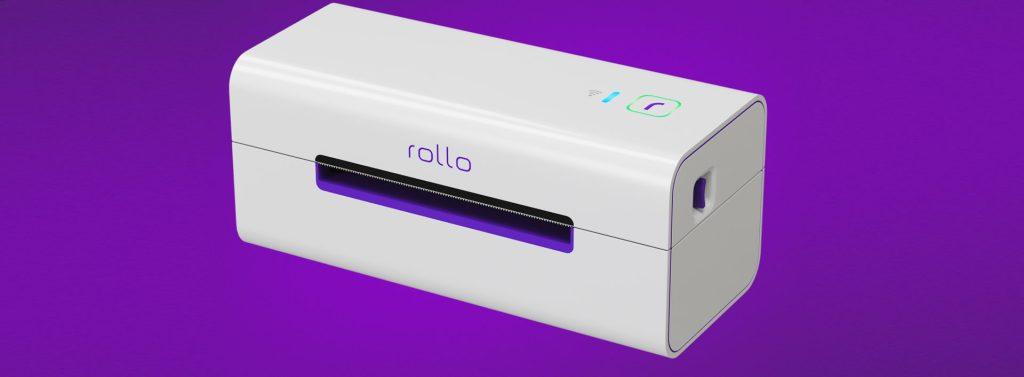
When it comes to choosing the best FedEx label printer, it’s hard to overlook what Rollo printers bring to the table to create labels:
Unmatched Efficiency: These printers have an astonishing capability of printing up to 325,000 feet of thermal labels without requiring any ink or toner. That’s efficiency redefined.
Smart Label Detection: Say goodbye to the tedious task of manually adjusting your labels. Rollo printers automatically detect label sizes, with the intelligent feature being particularly enhanced in the wireless model.
Wide-ranging Compatibility: Rollo printers can be easily integrated into virtually any tech ecosystem. Whether you’re operating on a Mac, Windows, iPhone, iPad, Android, or even Chromebook, these printers have you covered. Their compatibility is further extended as they are AirPrint and WiFi certified, which makes printing from any device a breeze.
What Sets Rollo Apart: The Rollo Ship App
The Rollo Ship App is another compelling reason why the purchase of a Rollo printer is an excellent choice for a FedEx label printer. This app, available on multiple platforms including iOS, Android, and Desktop, not only consolidates your shipping needs but also offers a myriad of features that make it stand out.
Empowerment Through Unified Carrier Connections
Beyond just selling channels, the Rollo Ship App steps up the game by offering an integrated platform to manage all your shipping carrier accounts. Instead of juggling multiple carrier portals and interfaces, Rollo offers a singular dashboard. This not only means less hassle but also quicker decisions as you can compare and choose the best shipping options at a glance.
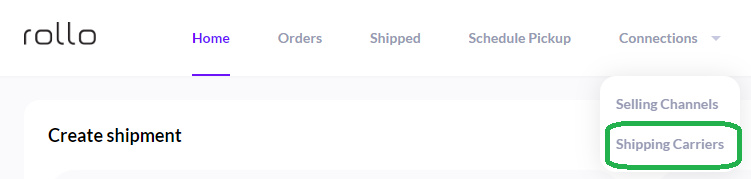
Here’s how simple it is: With just a few taps, you can link your Rollo FedEx label printer and your shipping carriers. Dive into the Rollo Ship App, navigate to “Connections”, move to “Shipping Carriers”, and there you are – just a click on the FedEx logo, a swift entry of your FedEx details, and you’re all set. Shipping with FedEx, or any other carrier for that matter, becomes as easy as hitting the “print” button.
How to print FedEx shipping labels by connecting Rollo to your FedEx account
Step 1: Log into your Rollo Ship App on your Desktop via ship.rollo.com or on your mobile app.
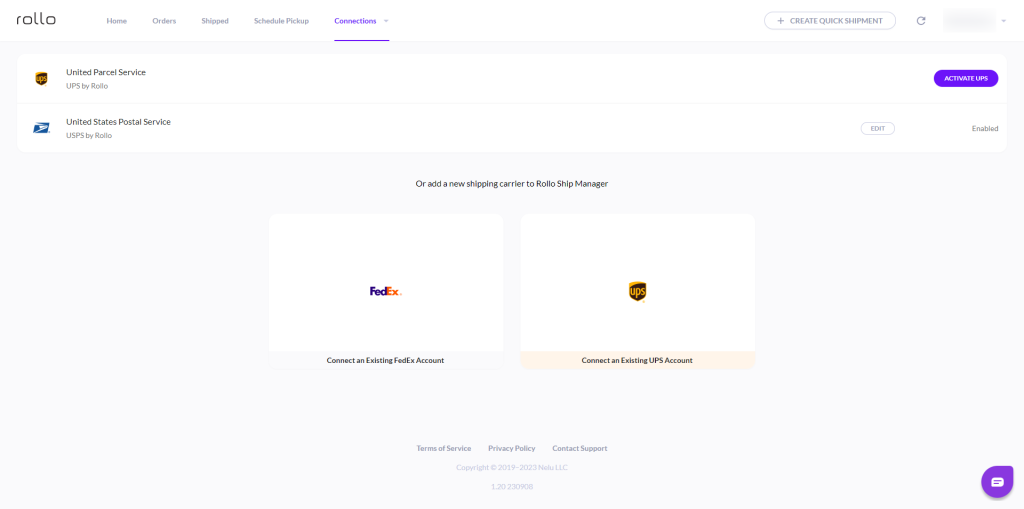
Step 2: Click on Connections > Shipping Carriers. Click on the FedEx logo:
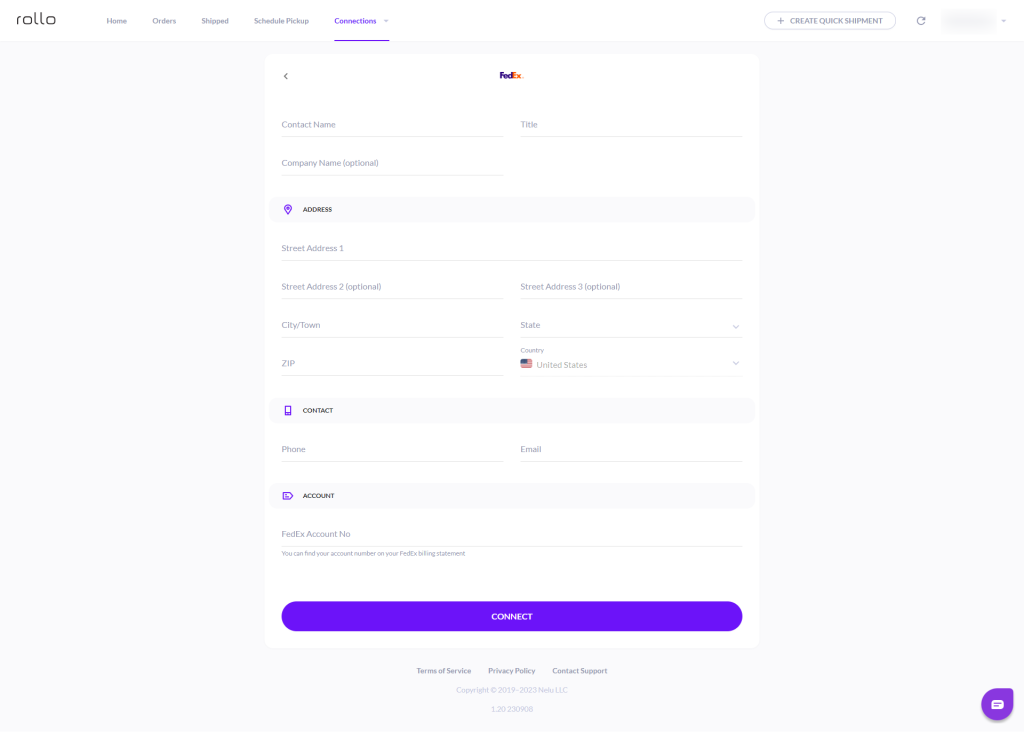
Step 3: Input your information and your FedEx Account number:
Features That Make the Rollo Ship App Indispensable for FedEx Shipping Labels
Unified Dashboard: One account lets you integrate orders from various marketplaces. This includes popular platforms like Amazon, Etsy, Shopify, and eBay among others, simplifying your FedEx label printer experience.
AI-Driven: With advanced AI algorithms, the Rollo Ship App will automatically import your new orders from connected stores, group them, and even notify you. This is especially useful when using FedEx shipping labels for bulk shipments.
Automated Notifications: Once your FedEx shipping labels are printed and your packages are shipped, the app can automatically notify your customers with tracking information.
Zero Obligations: The best part? You are not obliged to connect your store to use this app, nor do you have to own a Rollo printer to print FedEx labels.
A Closer Look: The Cost-Effectiveness of Rollo Ship App
In terms of cost, this app is a game-changer. There is no monthly subscription fee, and the cost to create a shipping label is a nominal 5 cents, which is waived for your first 200 labels. Additionally, Rollo has negotiated shipping discounts with major carriers, including FedEx, that can result in up to 90% off on your shipping costs.
Step-By-Step Guide: Setting Up Your Rollo FedEx Label Printer
The Rollo FedEx label printer streamlines the shipping process, offering you a seamless way to print various types of shipping labels, including FedEx labels. With user-friendly features and compatibility with a range of platforms, this printer is a reliable choice for all your shipping needs. Here’s your definitive guide to getting it all set up:
Initial Setup 🐾 Step 1: 🔌 Connect Your Rollo Printer
The first step is to ensure your Rollo printer is connected to both a power source and your computing device. Whether you’re using a traditional USB connection or taking advantage of Rollo’s wireless capabilities, make sure the connections are secure. For a full tutorial on the Rollo printer setup, please, visit this page.
One of the advantages of the Rollo wireless printer is that it doesn’t require any brand-specific drivers. However, if you are using the FedEx Ship Manager software, you’ll need to download the Zebra LP 2844 thermal printer drivers, which are compatible with your Rollo printer. Additionally, for the older model of Rollo, you will need a driver. Please, refer to this tutorial.
Initial Setup 🐾 Step 3: 🔎 Identify Printer Port
Connect the USB cable from your Rollo printer or link your wireless Rollo to your computer/device and turn on the printer. Press the feed button on the printer cover to ensure it is properly configured.
Fine-Tuning Your Printer for FedEx Labels 🐾 Step 1: 💻 Configure Port Settings
If your computer uses a COM port, you’ll need to adjust the port’s flow control settings. For older versions of Windows, set the flow control to “Hardware.” If you’re running Windows Vista or later, set it to “Xon/Xoff.”
Fine-Tuning Your Printer for FedEx Labels 🐾 Step 2: 💾 Install Printer Driver
A New Hardware Wizard will pop up, guiding you through the process of installing the printer driver files. Once the necessary files are copied over, click “Finish” to complete the driver installation.
Fine-Tuning Your Printer for FedEx Labels 🐾 Step 3: 🔗Printer Preferences
The last step in this phase is to exit the Preferences screen. Make sure to click the “Save/Update” button to finalize your settings.
Fine-Tuning Your Printer for FedEx Labels 🐾 Step 4: 📎 Testing Your Setup
Before you start your shipping operations, it’s crucial to test your new setup to ensure it works flawlessly.
Fine-Tuning Your Printer for FedEx Labels 🐾 Step 5: 🕹️ Navigate to FedEx Ship Manager
Log into your FedEx account and go to the FedEx Ship Manager. This is where you’ll control all your shipping activities, including label printing.
Fine-Tuning Your Printer for FedEx Labels 🐾 Step 6: ✅ Select Your Rollo Printer
From the list of available label printers, choose your Rollo printer to ensure that it’s configured properly with FedEx Ship Manager.
Fine-Tuning Your Printer for FedEx Labels 🐾 Step 7: 📄 Run a Test Print
Initiate a test print from the FedEx Ship Manager to print a sample FedEx label. If the label prints out as expected, congratulations! You’ve successfully set up your Rollo FedEx label printer.
⚠️ Extra Tips
👓 It’s worth mentioning that setting up your Rollo printer on FedEx Ship Manager might require an activation code, which FedEx will email to you after verifying your account information.
🖨️ Rollo can be installed as a ZPL printer, especially beneficial if you plan to use FedEx Ship Manager for your shipping needs.
📢 If you want an alternative to FedEx Ship Manager, consider commercial platforms like Rollo Ship App. Such platforms are FedEx-approved partners and offer a simpler setup process.
By successfully setting up your Rollo FedEx label printer, you’ve significantly improved your shipping capabilities, particularly for printing FedEx shipping labels.
The Ultimate FedEx Label Printer Solution
When it comes to finding the best label printer for FedEx, the Rollo thermal printer, accompanied by the feature-rich Rollo Ship App, offers a holistic and cost-effective solution. The Rollo printer’s easy setup, rapid printing, and exceptional reliability make it a superb choice for any FedEx shipping needs, whether you’re a small business owner or running a large-scale operation.
This comprehensive guide aimed to shed light on why Rollo stands out as the best FedEx label printer and how you can set it up to print FedEx shipping labels effortlessly. With the Rollo Ship App’s wide array of functionalities, you can streamline your FedEx label printing, enhance your logistics, and substantially reduce your shipping costs.
So if you’re still pondering the question, “What is the best FedEx label printer for me?” The answer is clear: Look no further than a Rollo thermal printer.
Rollo Ship App: A Closer Look
If you’re already familiar with Rollo’s FedEx label printer, you might be intrigued by another tool in the Rollo suite: the Rollo Ship App. This application serves as a centralized hub, connecting the dots between multiple platforms and your shipping process. Designed to streamline the entire shipping workflow, from order management to label printing, let’s dive deeper into the remarkable features that make the Rollo Ship App a must-have tool for e-commerce vendors.
🤖 AI-Driven Automation: Smart Shipping for the Modern World
One of the standout features of the Rollo Ship App is its artificial intelligence-based automation. Instead of manually keeping track of incoming orders from various platforms, the app uses AI algorithms to automatically import new orders from marketplaces like Amazon, Etsy, Shopify, and eBay. This goes beyond simple tracking: the AI can categorize orders based on different parameters, such as delivery timelines, destinations, or product type, and alert you when it’s time to process and ship the orders. This automated intelligence allows you to focus more on the core aspects of your business, leaving the grunt work to the app.
🧲 Multi-Platform Support: Manage Your Shipping Anywhere, Anytime
With the Rollo Ship App, you’re not tied down to a specific operating system or device. Whether you prefer to manage operations via iOS, Android, or a desktop computer, the app has got you covered. This cross-platform availability ensures you can handle your shipping tasks from the office, home, or even on the go. It’s an ideal feature for those who operate in a dynamic environment or have a diversified team.
🧮 Affordable and Flexible: No Strings Attached
The Rollo Ship App operates on a ‘pay-as-you-go’ model, making it incredibly cost-effective for businesses of all sizes. Unlike other shipping software that might require hefty monthly subscriptions, the Rollo Ship App only charges you 5 cents per printed label. As an added bonus, the fee for the first 200 labels is completely waived, giving you ample opportunity to get acquainted with the system before incurring any costs. This affordability, combined with the lack of contractual obligations, makes it an excellent choice for both small-scale sellers and larger enterprises.
⚙️ Broad Integration: One App to Rule Them All
The efficiency of any shipping tool relies heavily on how well it integrates with other platforms you’re already using. In this regard, the Rollo Ship App excels spectacularly. Capable of integrating with leading marketplaces and e-commerce platforms like Amazon, Etsy, Shopify, and eBay, the app serves as a centralized control panel for all your shipping activities. This not only saves you time from having to toggle between different platforms but also provides a uniform experience for managing orders and shipments.
💰 FedEx and Other Major Carriers: Savings That Add Up
One often-overlooked perk of the Rollo Ship App is its partnerships with major shipping carriers, including FedEx. The app offers exclusive shipping discounts, enabling you to save a significant amount on shipping costs. This is particularly beneficial if you have high shipping volumes or operate on a global scale. With reduced shipping costs, you can either improve your profit margins or pass on the savings to your customers, making your products more competitive in the market.
In summary, the Rollo Ship App isn’t just an add-on to your Rollo FedEx label printer; it’s a comprehensive shipping solution. With its AI-driven automation, multi-platform support, cost-effectiveness, broad integration capabilities, and partnership with major carriers like FedEx, the Rollo Ship App is a powerhouse that can significantly uplift your shipping game
Final Thoughts: Why Rollo is the Go-To FedEx Label Printer
If you’re looking for the best label printer for FedEx, you cannot go wrong with a Rollo printer, especially when coupled with their advanced Ship App. Easy to set up, convenient to use, and cost-effective in operation, it’s the all-in-one FedEx shipping label solution you’ve been searching for.
Whether you’re just starting out with your shipping journey or looking to optimize your established operations, Rollo provides a highly effective and efficient way to handle your FedEx shipping labels. So when it comes to selecting a FedEx label printer, make Rollo your first choice.
📌 Q1: What Label Printers Work with FedEx Ship Manager?
💭 A1: Not all label printers are compatible with FedEx Ship Manager. However, Rollo printers, given their compatibility with the Zebra LP 2844 drivers, can easily be used with the FedEx Ship Manager.
📌 Q2: Does FedEx Provide Label Printers?
💭 A2: FedEx itself does not provide label printers. However, they have a list of recommended printers, and it’s worth noting that the Rollo thermal printer is an excellent choice for printing FedEx labels.
📌 Q3: Can I Print Out My Own FedEx Label?
💭 A3: Absolutely! With a reliable FedEx label printer like Rollo, you can print your own shipping labels right from the FedEx website or through the FedEx Ship Manager. All you need is to ensure that your printer is set up correctly, as outlined in the guide above.
📌 Q4: Can FedEx Print a Label from Your Phone?
💭 A4: Yes, you can! The Rollo Ship App allows you to manage your shipping needs from your smartphone, and it will also automatically notify the recipient of their tracking info. You can then simply head to your local FedEx location, present your QR code, and have them print it for you if you wish.
📌 Q5: Is It Cheaper to Print FedEx Labels at Home?
💭 A5: Most certainly! When you print FedEx labels at home using your own FedEx label printer, like a Rollo printer, you can save money. Plus, the Rollo Ship App offers shipping discounts of up to 90% off with major carriers, including FedEx.
📌 Q6: Can You Print FedEx Labels on a Thermal Printer?
💭 A6: Absolutely, thermal printers are ideal for printing FedEx shipping labels. They’re fast, efficient, and don’t require any ink. Rollo’s compact direct thermal label printers are perfect for this job.
📌 Q7: Can I Print My Own FedEx Label?
💭 A7: Yes, you can! With the right FedEx label printer like a Rollo thermal printer, you can easily print your FedEx labels from the comfort of your home or office.
📌 Q8: Which Label Printers Work with FedEx?
💭 A8: Various label printers are compatible with FedEx, but as this guide illustrates, a Rollo thermal printer stands out as one of the best FedEx label printer options due to its efficiency, cost-effectiveness, and wide-ranging compatibility.
and what does the ‘Shipping label created’ status mean? Shipping labels are a crucial component of the logistics and e-commerce industries, ensuring smooth and accurate package delivery. The ‘Label Created Not Yet in System’ status means the package is not moving through the carrier’s network but is being prepared for pickup. In this comprehensive guide, we will explore how to create shipping labels for major couriers, dive into the step-by-step process of using the Rollo Ship App, and answer common questions related to shipping label creation.
📦 Creating Shipping Labels
Creating shipping labels is a crucial step in the shipping process, as they ensure packages are correctly routed to their destinations while providing tracking capabilities. Shipping labels can be generated manually or through online shipping platforms, depending on the shipper’s preference and the resources available. When a shipping label is created but not yet scanned by the carrier, the package is not officially in the carrier’s system for tracking purposes.
✉️ Components of a Shipping Label
Shipping labels contain the following essential information:
1. Sender’s address
The address of the person or business sending the package. This information is used in case the package needs to be returned due to delivery issues.
2. Recipient’s address
The address of the person or business receiving the package. This information is crucial for accurate package delivery.
3. Shipping service
The shipping service or method selected, such as overnight, priority, or standard shipping. This information helps the courier determine the transit time and route.
4.Barcode
A machine-readable representation of the tracking number, facilitating efficient processing and routing of the package by the courier.
5. Tracking number
A unique number assigned to the package, enabling both the shipper and the recipient to monitor its progress through the courier’s tracking system.
6. Package dimensions & weight
The size and weight of the package, used by the courier to calculate shipping costs and ensure proper handling during transit.
Manual Shipping Label Creation
Manually creating shipping labels involves writing or typing the necessary information on a label, which is then affixed to the package. This process can be time-consuming and prone to errors, as it requires looking up addresses, service codes, and other details. However, it can be a viable option for small businesses or individuals with a low volume of shipments.
Online Shipping Platforms
Online shipping platforms offer a more efficient and accurate method of generating shipping labels. These platforms, often provided by couriers or third-party companies, allow users to input the required information, select shipping services, and print shipping labels directly from their computers or mobile devices.
Some advantages of online shipping platforms include:
💜 Automation: The platform can automatically retrieve addresses and other details from connected e-commerce platforms or address books, reducing the risk of errors.
💜 Shipping cost calculation: Online platforms can calculate shipping costs based on package dimensions, weight, and shipping service, helping users make informed decisions and avoid unexpected fees.
💜 Bulk label creation: Users can create multiple shipping labels at once, streamlining the process for businesses with a high volume of shipments.
💜 Integration with couriers: Online shipping platforms often integrate directly with major couriers, allowing users to schedule pickups, track packages, and manage shipments more efficiently.
Shipping labels are created by either manually inputting the necessary information onto a label or using an online shipping platform to generate and print the labels. Online platforms offer increased efficiency, accuracy, and convenience compared to manual label creation, making them a popular choice for businesses and individuals alike.
Creating Shipping Labels for Major Couriers
Creating shipping labels for major couriers such as FedEx, UPS, and USPS is an essential step in ensuring accurate and timely package delivery. Each courier has its own online shipping platform, which streamlines the label creation process. Additionally, understanding the ‘Label Created Not Yet in System’ shipping status is crucial. This status indicates that the order is prepared for shipment, with the shipping label generated, or that the order is still in the fulfillment process within the warehouse. Below, we provide a more detailed overview of creating shipping labels for each of these major couriers.
How to Create a FedEx Shipping Label
FedEx offers a user-friendly online platform called FedEx Ship Manager for creating shipping labels. Follow these steps to generate a FedEx shipping label:
🐾 1. Register for a FedEx account:
If you don't have a FedEx account, sign up for one at fedex.com.
🐾 2. Access FedEx Ship Manager:
Visit fedex.com and log in to your account. Click "Ship" in the top menu to access FedEx Ship Manager.
🐾 3. Create a new shipment:
Select "Create a Shipment" from the main menu to start the process.
🐾 4. Enter shipment details:
Fill in the necessary information, including sender and recipient addresses, package dimensions, weight, and shipping service. You can also add optional services, such as insurance or signature confirmation, if desired.
🐾 5.Choose shipping options:
Select the desired shipping service based on delivery speed, cost, and other factors. FedEx Ship Manager will display the available options and their corresponding rates.
🐾 6. Review and confirm details:
Double-check the shipment information for accuracy and make any necessary adjustments before proceeding.
🐾 7. Pay and print the shipping label:
Enter your payment information and complete the transaction. Once the payment is processed, you can print the shipping label using a standard or thermal printer. Affix the label to your package, ensuring it is visible and securely attached.
How to Create a UPS Shipping Label
UPS provides an online shipping platform called UPS CampusShip, which simplifies the shipping label creation process. Here are the steps to create a UPS shipping label:
🐾 1. Register for a UPS account:
If you don't have a UPS account, sign up for one at ups.com.

🐾 2. Access UPS CampusShip:
Visit ups.com and log in to your account. Click "Shipping" in the top menu and select "Create a Shipment" to access UPS CampusShip.

🐾 3. Enter shipment details:
Input the necessary information, such as sender and recipient addresses, package dimensions, weight, and shipping service. You can also add optional services like insurance or signature confirmation, if needed.

🐾 4. Choose shipping options:
Select the desired shipping service based on factors like delivery speed, cost, and availability. UPS CampusShip will display the available options along with their rates.

🐾 5. Review and confirm details:
Review the shipment information for accuracy and make any necessary adjustments.

🐾 6. Pay and print the shipping label:
Enter your payment information and complete the transaction. Once the payment is processed, print the shipping label using a standard or thermal printer. Attach the label to your package, making sure it is visible and securely fastened.
How to Create a USPS Shipping Label
USPS offers an online shipping platform called USPS Click-N-Ship, which streamlines the process of creating shipping labels. Follow these steps to generate a USPS shipping label:
🐾 1.Register for a USPS account:
If you don't have a USPS account, sign up for one at usps.com.
🐾 2. Access USPS Click-N-Ship:
Visit usps.com and log in to your account. Click "Click-N-Ship" in the top menu to access the platform.
🐾 3.Create a new shipment:
Select "Create a Label" from the main menu to start the process.
🐾 4.Enter shipment details:
Fill in the necessary information, including sender and recipient addresses, package dimensions, weight, and shipping service. You can also add optional services, such as insurance or signature confirmation, if desired.
🐾 5. Choose shipping options:
Select the desired shipping service based on factors like delivery speed, cost, and availability. USPS Click-N-Ship will display the available options along with their rates.
🐾 6. Review and confirm details:
Double-check the shipment information for accuracy and make any necessary adjustments before proceeding.
🐾 7.Pay and print the shipping label:
Enter your payment information and complete the transaction. Once the payment is processed, print the shipping label using a standard or thermal printer. Affix the label to your package, ensuring it is visible and securely attached.
Additional Tips for Creating Shipping Labels with Major Couriers
When creating shipping labels with FedEx, UPS, or USPS, keep these tips in mind to ensure a smooth and efficient process:
💜 Keep your address book updated: Maintain an up-to-date address book within your courier account to streamline the label creation process and minimize the risk of errors.
💜 Save shipment preferences: Save your preferred shipping services and options within your courier account for quick and easy access during future shipments.
💜 Monitor your shipments: Track your packages using the tracking numbers provided on the shipping labels to stay informed about their progress and address any issues that may arise.
💜 Consider using shipping software: Shipping software solutions, like ShipStation or Shippo, can integrate with multiple couriers and e-commerce platforms, simplifying the shipping label creation process and providing additional features like bulk label creation, discounted shipping rates, and centralized shipment management.
By following the steps and tips outlined above, you can efficiently create shipping labels with major couriers like FedEx, UPS, and USPS, ensuring accurate and timely delivery of your packages.
Step-by-Step Guide to Creating a Shipping Label with the Rollo Ship App
The Rollo Ship App is a convenient and efficient tool for creating shipping labels, offering compatibility with various platforms and shipping carriers. The following is a detailed guide on using the Rollo Ship App to generate shipping labels.
👣 Step 1:
Download the Rollo Ship App on your iOS/Android device and install it. Alternatively, access Rollo Ship via browser.
Connect your e-commerce platform or marketplace account, if applicable. Rollo Ship is integratable with: Shopify, Etsy, WooCommerce, Ebay, Amazon, BigCartel, Walmart, Squarespace, Ecwid, Square, Wix, Magento, PayPal, and more.
Step 4:
Choose “Create Shipment” and enter the shipping address details in “From Address” & “To Address or contact”.
Alternatively, you can also click on “Create Quick Shipment” at the top right corner.
Tip: If you input your contacts “Add contacts” and add your address in “Add ship from address” in advance, you are optimizing your shipment process by reducing manual input.
Tip: Select “Email tracking to recipient” to help your customers with the tracking code.
👣 Step 5:
Enter the necessary shipment information, including sender and recipient details, package dimensions, and shipping service.
Step 6:
You can schedule a pick up.
👣 Step 7:
Review and confirm the details.
Step 8:
Choose the carrier you would like to use and take advantage of the shipping discounts.
👣 Step 9:
Print the shipping label using your Rollo label printer and attach it to your package. No ink, no label cutting, no label measurement. Rollo Print and Rollo Ship have figured it all out for you.
⏱️ How Long Does It Take to Create a Shipping Label?
The time required to create a shipping label varies depending on the method used. For online platforms, it can take just a few minutes to input the necessary information and generate the label. Manual label creation can take longer, especially if you need to look up addresses, service codes, or other details.
⌛ Time Required to Create Shipping Labels and Advantages of Rollo Ship App
Method/Platform
Time Required to Create Shipping Label
Additional Considerations
Manual Label Creation
10-15 minutes (Varies)
Need to look up addresses, service codes, and other details.
Online Platforms (UPS, USPS, FedEx)
5-10 minutes (Varies)
Requires visiting individual courier websites, creating an account for each, and logging in separately.
Rollo Ship App
2-5 minutes (Varies)
Centralized platform for managing shipments with multiple couriers; no need to visit separate websites.
✅ Advantages of the Rollo Ship App
The Rollo Ship App offers several advantages over traditional methods of shipping label creation, such as manual creation or using individual courier websites:
🤍 Centralized platform
The Rollo Ship App provides a single, unified platform for managing shipments with multiple couriers, such as UPS, USPS, and FedEx, without the need to visit separate websites or create individual accounts for each courier.
💜 Automated order detection
The software automatically detects new orders from connected e-commerce platforms, streamlining the shipping label creation process and reducing the time needed to input the necessary information.
🤍 Multi-carrier support
The Rollo Ship App enables users to create and manage shipping labels for multiple couriers, making it easier to compare shipping rates and services and choose the best option for each shipment.
💜 Integration with e-commerce platforms
The Rollo Ship App integrates seamlessly with popular e-commerce platforms like Shopify, WooCommerce, and Etsy, making it easy to manage shipments directly from your online store.
🤍 Bulk label creation
Users can create multiple shipping labels at once, saving time and effort when processing a high volume of shipments.
💜 Enhanced shipment tracking
The Rollo Ship App provides centralized shipment tracking, allowing users to monitor the progress of their packages across different couriers and stay informed about any potential issues or delays.
By leveraging the Rollo Ship App’s unique features and capabilities, users can save time and effort in creating shipping labels while enjoying a more efficient and streamlined shipping experience.
➡️ What Happens After a Shipping Label Is Created ❓
Once the shipping label has been created and affixed to the package, it is ready to be handed over to the courier for processing and delivery. The courier scans the label’s barcode to register the package into their tracking system and route it to the destination. Throughout its journey, the package’s progress can be monitored using the tracking number on the shipping label.
Steps
UPS
Rollo Ship App
1. Handover
UPS Store, UPS Drop Box, UPS Access Point, or scheduled pickup
Appropriate courier location or scheduled pickup
2. Barcode Scanning
Package registered in UPS tracking system and routed based on destination
Package registered in selected courier’s tracking system and routed based on destination
3. Sorting & Routing
UPS sorting facilities
Selected courier’s sorting facilities
4. Tracking Updates
Package movement, estimated delivery time, possible delays
Centralized tracking for multiple couriers, package movement, estimated delivery time, possible delays
Stages of Shipping after status “Shipping Label Created” with UPS vs Rollo Ship App
Steps
USPS
Rollo Ship App
1. Handover
USPS Post Office, USPS Drop Box, USPS Collection Point, or scheduled pickup
Appropriate courier location or scheduled pickup
2. Barcode Scanning
Package registered in USPS tracking system and routed based on destination
Package registered in selected courier’s tracking system and routed based on destination
3. Sorting & Routing
USPS sorting facilities
Selected courier’s sorting facilities
4. Tracking Updates
Package movement, estimated delivery time, possible delays
Centralized tracking for multiple couriers, package movement, estimated delivery time, possible delays
Stages of Shipping after status “Shipping Label Created” with USPS vs Rollo Ship App
Steps
FedEx
Rollo Ship App
1. Handover
FedEx Office, FedEx Drop Box, FedEx Authorized ShipCenter, or scheduled pickup
Appropriate courier location or scheduled pickup
2. Barcode Scanning
Package registered in FedEx tracking system and routed based on destination
Package registered in selected courier’s tracking system and routed based on destination
3. Sorting & Routing
FedEx sorting facilities
Selected courier’s sorting facilities
4. Tracking Updates
Package movement, estimated delivery time, possible delays
Centralized tracking for multiple couriers, package movement, estimated delivery time, possible delays
Stages of Shipping after status “Shipping Label Created” with FedEx vs Rollo Ship App
What Does “Shipping Label Created” Mean with Different Couriers ❓
“Shipping label created” is a status update that indicates the shipper has generated a shipping label for the package, but the courier has not yet received or scanned it into their system. This status may vary slightly among different couriers. It means the package has not yet been scanned into the carrier’s system:
How Long After Shipping Label Created UPS Ships❓
For UPS, the status "Label Created" or "Order Processed: Ready for UPS" signifies that:
- the shipping label has been created,
- only the shipping cost has been settled,
- UPS is awaiting the package to process it for its first transit scan.

This status does not indicate the package moving through the carrier's network, but rather that the retailer is preparing the order for pick up from the warehouse.

Once UPS scans the package, the status will update to "In Transit."
Seldomly, it may also mean that your parcel is yet to be dispatched.
Usually it takes a couple of days, but sometimes it may take around 5 business days.
How Long After Shipping Label Created FedEx Ships❓
For FedEx, the status "Label Created" or "Shipment information sent to FedEx" indicates that:
- the shipper has generated the shipping label, and FedEx is awaiting the package.

- FedEx has received the information and is preparing for pickup, not having scanned your parcel yet.

The status will change to "Picked Up" or "In Transit" once FedEx receives and scans the package.
Usually, FedEx generates a tracking number within 24 hours of the label being generated.
What Does Shipping Label Created-USPS Awaiting Item ❓
For USPS, the status "Shipping Label Created, USPS Awaiting Item" means:
the shipper has generated the shipping label, but USPS has not yet received the package.

The status will update to "Accepted" or "In Transit" once USPS scans the package into their system.
Tip for eCommerce sellers: Sometimes packages get stuck for a few days on status “label created”, thus, it may be a good idea to postdate your shipping label and be proactive with your customer, informing them on a possible delay. This way, you will reduce the chance for customer dissatisfaction.
Note: If you get stuck on a “label created” status with any of the carriers, try reaching out to their customer service to double-check if there is any technical issue and expedite the process. To understand more on another status “Ready to Ship”, refer to this article.
Conclusion
Understanding the process of creating shipping labels and the meaning of the “Shipping Label Created” status is essential for both e-commerce businesses and customers. The Rollo Ship App is an excellent tool for streamlining label creation and shipment management, ensuring a smooth and efficient shipping experience. Familiarizing yourself with the specific requirements and processes of major couriers like FedEx, UPS, and USPS will further enhance your shipping expertise and help avoid potential delays or issues in package delivery.
Short Answer: A courier is yet to receive/scan your package.
A: This status indicates that the shipper has generated a shipping label for your package, but the courier hasn’t yet received or scanned the item into their system.
Q: How long does it take for a package to be shipped after a shipping label is created?
Short Answer: Generally a few days post creating the label.
A: The timing can vary by courier and the shipper’s schedule. Generally, the package is handed over to the courier within a few days of the shipping label being created.
Q: What should I do if the status of my package is stuck on “shipping label created”?
Short Answer: Contact the customer service of the carrier.
A: Should the status of your package remain unchanged for an extended period, consider contacting the customer service of the respective courier for assistance. They can provide more information or help resolve any potential issues.