In the era of online shopping, Mercari has emerged as a frontrunner, boasting over 15 million monthly active users. The platform provides a unique, user-friendly environment where both buyers and sellers can thrive. However, in this increasingly saturated market, ensuring a smooth shipping process isn’t just a nice-to-have—it’s a necessity. Enter Rollo, the game-changing ecosystem equipped with high-speed label printers, user-friendly shipping apps, and customization features designed to elevate your Mercari shipping process from mere logistics to a compelling part of your brand identity.
The Synergy between Mercari and Rollo Tools
When it comes to shipping, think of Mercari as your marketplace and Rollo as your back-office team. The Mercari platform offers an integrated space for listing your products, while Rollo ensures these products get to your buyers as efficiently and cost-effectively as possible. The partnership between these two platforms offers a seamless, end-to-end e-commerce experience, enabling you to focus more on scaling your business and less on logistics.
How to Ship on Mercari: The Basics, Unpacked
Mercari has democratized the marketplace for people interested in turning their unused items into cash or building a side hustle. However, where sellers often stumble is when it comes to managing the intricacies of shipping—calculating rates, printing labels, tracking packages, and even handling returns.
Compatibility: How Rollo Works with Mercari
The brilliance of Rollo’s suite of tools lies in its seamless compatibility with Mercari. Rollo’s printers support Mercari shipping label sizes, which means you won’t have to worry about resizing or reformatting. Simply Navigate to your Order Status page. Scroll to Shipping Information > Label and set the paper size to 4×6.
Step-by-Step: A Basic Guide to Shipping on Mercari with Rollo
- 📰 List your product on Mercari: Set up your listing, including shipping fees.
- 📥 Receive an Order: You’ll get a notification when someone buys your product.
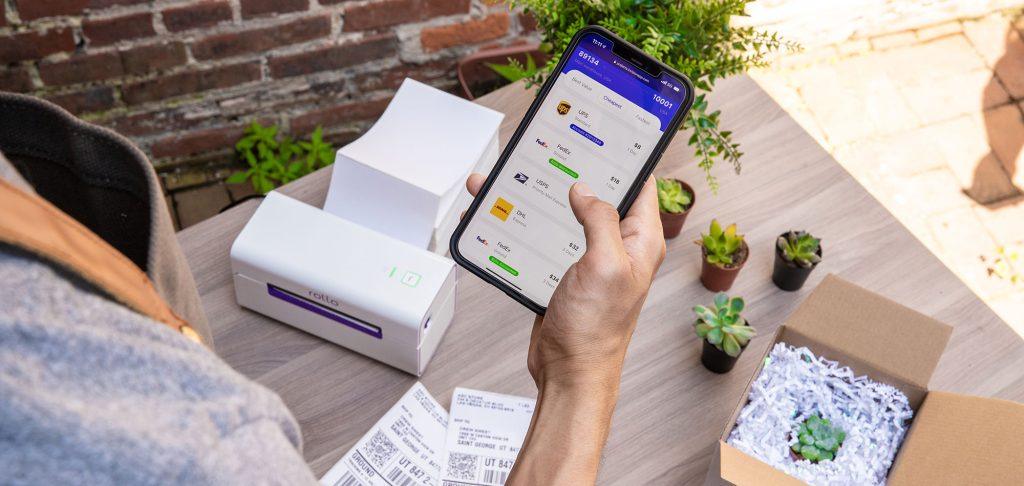
- 📱 Set Label size to 4×6 choosing the best shipping option in terms of speed, price, or type of service.
- 🖨️ Print the Label: Use your Rollo printer to print the shipping label.
- 🎁 Package the Product: Securely package your product and attach the shipping label.
- 📦 Drop Off or Schedule Pickup: Take the package to the shipping carrier or schedule a pickup through the Rollo Ship App.
- 📍 Track and Notify: Use the Rollo Ship App to keep track of the shipment and update the buyer.
PRINT MERCARI SHIPPING AND BARCODE LABELS.
Boost your Mercari sales!
How Does Shipping Work with Mercari?
Shipping is an integral part of the selling process on Mercari, but it also comes with its own set of challenges. How do you choose the best shipping carrier? How do you manage shipping costs?
A Seamless Process: Rollo’s Solution to Mercari Shipping
With the Rollo Ship App, these questions become much easier to answer. This all-in-one platform offers a range of shipping carriers, compares real-time rates, and even provides recommendations based on your specific needs. You no longer need to jump between multiple tabs or websites; everything is centralized.
| Shipping Carrier | 😊 Pros | 😞 Cons |
|---|---|---|
| USPS | Affordable, Reliable | Slower for International Shipping |
| UPS | Fast, Great for Larger Packages | Can be Expensive |
| FedEx | Quick, Excellent Tracking | Premium Rates |
Does Mercari Ship USPS or UPS?
The Flexibility of Choice with Rollo Ship App
One of the biggest perks of using Rollo for your Mercari shipping needs is the flexibility it offers in choosing your shipping carrier. The Rollo printer supports all major shipping carriers including USPS, UPS, Fedex (along with other carriers), giving you the freedom to select the best option based on your shipping volume, speed requirements, and budget constraints.
Tip: Save Money with Carrier Comparisons
Use the Rollo Ship App to compare the cost and delivery times between carriers directly. The app pulls real-time data to help you make the most cost-effective decision.
What Does It Cost to Ship on Mercari?
Shipping costs on Mercari can vary widely depending on several factors such as item weight, dimensions, and shipping carrier. Mercari offers both prepaid and custom shipping options. The prepaid labels provided by Mercari are easy to use but might not always be the most cost-effective for every item type. If you choose to use your shipping label, costs will vary based on the carrier and service you select.
Additional Tips for Cost-Saving:
🛍️ Batch Shipments
If you’re shipping multiple items, some carriers offer bulk shipment discounts. This could be particularly beneficial if you have several orders to send out.
📨 Flat-Rate Options
Many carriers offer flat-rate shipping options, especially for heavier items. These can be a more economical choice as you don’t have to worry about weight affecting the price as long as it’s under the flat-rate box’s weight limit.
📊 Off-Peak Hours
Some shipping services provide discounted rates during off-peak hours or days. You might want to look into this as an option to cut down your shipping costs.
How Long Does Mercari Take to Ship?
The shipping timeline on Mercari can vary depending on multiple factors, including the shipping carrier you choose, the shipping method, and the destination. Generally, it can take anywhere from 2-5 business days for standard shipping. Expedited options are also available but at a higher cost.
Pro Tips for Faster Shipping
🗒️ Accurate Descriptions
Make sure the product descriptions and weights are accurate. Wrong information can lead to delays and extra costs.
⏱️ Ship ASAP
The quicker you can get the item out, the happier your customers will be. Aim to ship within 24 hours of receiving an order.
✅ Choose the Right Carrier
Different carriers have strengths and weaknesses depending on the shipping zones. Pick a carrier that excels in the zones where most of your customers reside.
How Do I Ship After Selling on Mercari?
After making a sale on Mercari, you have the option to either use a prepaid Mercari shipping label or to arrange for your shipping. If you choose the prepaid label, you’ll need to print it, attach it to the packaging, and then drop off the package at the relevant carrier. If you opt for your shipping, you’ll need to enter the tracking information manually to keep the buyer updated.
Steps to Ship After Selling on Mercari
- ✔️ Confirm Sale: Once the buyer pays for the item, you’ll get a notification.
- 📦 Choose Shipping Method: Decide between a prepaid Mercari label or your shipping option.
- 📨 Prepare Package: Safely package the item to prevent any damage during transit.
- 🏷️ Attach Label: If using a prepaid label, print and attach it to the package.
- 🚚 Drop Off: Take the package to the shipping carrier’s nearest drop-off point.
- 🌎 Update Tracking: If you’re using your shipping, manually input the tracking details into the Mercari platform to keep your buyer informed.
What Shipping Should I Use for Mercari?
Choosing the right shipping option is crucial for both customer satisfaction and your bottom line. Mercari offers a few different shipping methods, such as Mercari Prepaid Labels, Ship on Your Own, and Local Pickup.
| Shipping Method | ✅ Pros | ❌ Cons |
|---|---|---|
| Mercari Prepaid Labels | Easy to use, tracking included | Limited to certain carriers |
| Ship on Your Own | More flexibility, potentially cheaper | No tracking unless you add it |
| Local Pickup | No shipping costs | Limited to local buyers |
| Rollo Ship App | Bulk discounts, transparent pricing, multi-carrier support | Requires an initial setup, but it takes just a few moments. |
Additional Notes on the Rollo Ship App
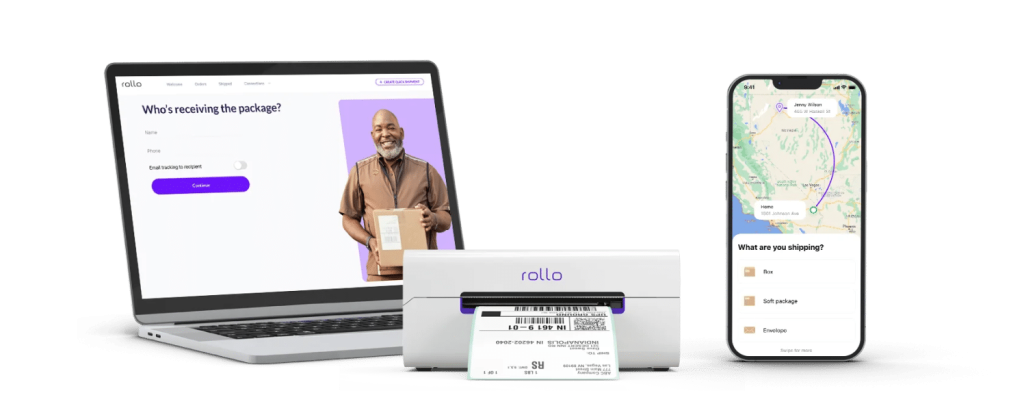
The Rollo Ship App offers significant advantages for Mercari sellers looking to optimize their shipping process. Its transparent pricing model allows you to view all costs upfront, eliminating any surprise fees. The app supports multiple carriers, giving you the freedom to choose the most cost-effective and timely options. One of the most compelling features is its ability to handle batch shipments, offering bulk discounts that can significantly reduce your shipping costs. Moreover, the Rollo printer seamlessly prints your shipping labels regardless of where you obtained them.
Tips for Choosing the Right Shipping Method:
🤓 Evaluate Your Product Range with Rollo’s Carrier Comparisons
Rollo Ship App allows you to compare different carriers side by side. If you’re selling items with varying sizes and weights, you can quickly determine which carrier offers the most cost-effective and efficient option for each product.
📈 Consider Your Margins Using Rollo’s Cost Analysis
Rollo Ship App offers a detailed cost analysis feature that takes into account not only the shipping fees but also packaging costs. This ensures you’re not just choosing the cheapest option but the one that maximizes your profit margins.
📚 Batch Shipments for Streamlined Operations
The Rollo Ship App allows you to handle multiple orders simultaneously, offering bulk discounts and saving you valuable time. You can batch-process labels for different carriers, all in one easy-to-use dashboard.
📢 Off-Peak Alerts for Cost Savings
Some carriers offer discounted rates during off-peak hours. The Rollo Ship App provides real-time alerts for such opportunities, allowing you to schedule your shipments at the most cost-effective times.
🗺️ Leverage Real-Time Tracking
The Rollo Ship App provides real-time tracking updates for multiple carriers, giving you and your customers peace of mind and reducing customer service inquiries about package whereabouts.
By using the Rollo Ship App, you don’t just choose a shipping method; you adopt a comprehensive strategy that streamlines your entire Mercari shipping process, saving both time and money while enhancing customer satisfaction.
NO MONTHLY SUBSCRIPTIONS.
Up to 90% off UPS, FedEx, and USPS shipping.
Schedule pickups, consolidate orders,
& print Mercari shipping labels in bulk.
Can I Pay for My Shipping on Mercari?
Yes, you can pay for your shipping on Mercari, and you have the flexibility to choose the carrier and shipping speed. If you opt for this, you’ll need to provide the tracking number from the carrier you’ve chosen so that both you and the buyer can monitor the package’s journey.
Tips for Paying for Your Shipping
📊 Compare Carrier Rates
Use tools to compare carrier rates to find the most cost-effective option for your shipping needs.
🧮 Use a Shipping Calculator
There are several online tools available that can help you accurately estimate shipping costs based on weight and dimensions.
Do I Need a Box to Ship Mercari?
Packaging is crucial when shipping any items sold on Mercari to ensure they arrive safely. While you do not need a specific ‘Mercari box,’ it is highly recommended to use sturdy packaging that can withstand the rigors of transit.
Packaging Tips: Elevate Your Brand with Rollo Label Designer and Mailing Supplies
🎀 The Importance of Professional Packaging
Your packaging says a lot about your brand. It's the first physical touchpoint that customers have with your product, and you want to make it memorable. With Rollo's Label Designer, you can elevate your packaging game to create a lasting impression.
🏷️ Create Custom Labels with Rollo Label Designer
Standard shipping labels get the job done, but why stop there when you can customize and stand out? Rollo Label Designer allows you to create custom labels that can include your logo, a personalized message, or even a promotional offer. These custom labels not only add a touch of professionalism but can also serve as a marketing tool.
😊 Quality Labels Lead to Satisfied Customers
The quality of the label matters just as much as the design. Rollo’s labels are durable, water-resistant, and eco-friendly, ensuring that your package arrives in pristine condition. This helps boost customer confidence and encourages repeat business.
📏 Optimize Size with Rollo’s Various Label Options
Rollo Label Designer supports a range of sizes, including the popular 4x6 Mercari shipping label. You can easily adjust the size based on your packaging needs, ensuring that you don't waste space or material.
✉️ Rollo Mailing Supplies: A One-Stop Solution
In addition to labels, Rollo also offers a range of mailing supplies like boxes, poly mailers, and bubble wrap. These materials are designed to be eco-friendly and cost-effective, allowing you to maintain a sustainable shipping strategy without breaking the bank.
💜 Why Choose Rollo Mailing Supplies?
When you use Rollo mailing supplies, you're not just opting for quality but also for consistency. Every package that leaves your hands will maintain a standard of excellence, setting you apart from competitors on the Mercari platform.
Incorporating Rollo’s Label Designer and mailing supplies into your packaging strategy offers an excellent opportunity to elevate your brand, boost sales, and increase customer satisfaction.
How to Get a Mercari shipping label?
Upon selling an item on Mercari, the platform prompts the seller to choose their preferred shipping method. If the seller opts for Mercari’s prepaid labels, they can access and download the shipping label directly from their Mercari dashboard. This label will include the shipping cost and carrier details, whether it’s USPS or UPS, based on the seller’s selection or the buyer’s chosen shipping method. Once downloaded, it’s ready to be printed.
How to Print a Mercari shipping label on a Rollo printer?
- Setup: Ensure your Rollo printer is properly connected to your computer and the necessary drivers are installed (if you are using a Rollo USB label printer) or your Rollo wireless is connected to the WiFi network. For setup instructions kindly visit this page.
- Download Label: Access your Mercari dashboard and download the Mercari shipping label you want to print. With Rollo Wireless you can print from any device, any app, or any file thanks to it being WiFi and AirPrint certified.
- Open Label: Open the downloaded label using a compatible viewer like Adobe Acrobat or any image viewer.
- Printer Settings: In the print dialogue, select your connected Rollo printer. Make sure the label size is set to 4×6 (standard size for most shipping labels) or as per the dimensions of the label you have. If accurately set up initially, Rollo automatically remembers the settings of your labels.
- Print: Click on the ‘Print’ button.
- Quality Check: Once printed, ensure that all the details on the label are clear and legible.
- Apply to Package: Carefully peel off the label and stick it onto your package, ensuring it’s securely attached and visible.
Utilizing a Rollo printer for your Mercari shipping needs ensures high-quality, smudge-proof labels that are easily scannable, elevating the professionalism of your shipments and improving the shipping experience for both you and your buyers.
Conclusion: Mercari Shipping Transformed with Rollo Tools
Shipping can often be the most complicated aspect of running an online business on Mercari. Yet, it’s also one of the most critical parts of the customer experience. From the moment a buyer chooses an item until it lands on their doorstep, your shipping process is under scrutiny. With the right tools and practices, however, it’s entirely possible to transform this challenging part into a competitive advantage.
Rollo’s extensive suite of products is designed to make this transformation seamless. Whether it’s the high-speed, high-quality label printing from Rollo printers, the end-to-end shipping management through the Rollo Ship App, or the brand-building customization offered by Rollo Label Designer, each element is aimed at making your life as a Mercari seller easier and more profitable.
So why settle for sub-par shipping practices when you can streamline, economize, and professionalize your Mercari shipping process with Rollo’s suite of tools? After all, in today’s competitive marketplace, the details matter. And with Rollo’s ecosystem at your fingertips, you have the opportunity to master those details and stand out from the crowd.
Follow Rollo on:
Frequently Asked Questions about Mercari shipping:
📌 Q: Does Mercari Ship USPS or UPS?
💭 A: Mercari provides shipping options through both USPS and UPS. Sellers can choose their preferred carrier when listing their items or use their shipping method.
📌 Q: Does Mercari charge the seller for shipping?